Configuring Acceptance Use Policy
The Acceptance Use Policy page of any workflow configuration is where you should call
out GDPR compliancy information for your end users.
The Acceptance Use Policy (AUP) page provides the terms and conditions for Cloudpath users when they go through the onboarding process.
Follow these steps to edit the AUP page to add the necessary GDPR-related information:
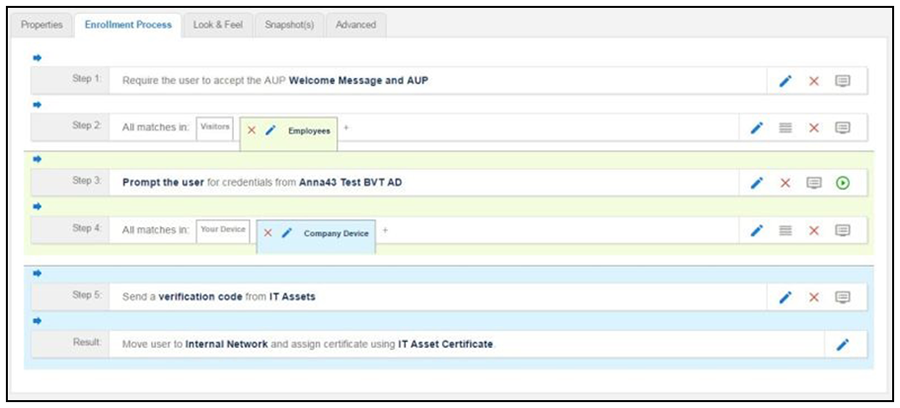
- Follow the instructions in the Cloudpath Deployment Administration Guide for either creating a workflow (navigate to Configuration > Workflows in Cloudpath) from a blank state or modifying an existing workflow for the purpose of editing the AUP page. The AUP page is typically the first step in a workflow, as shown in the completed example workflow below.
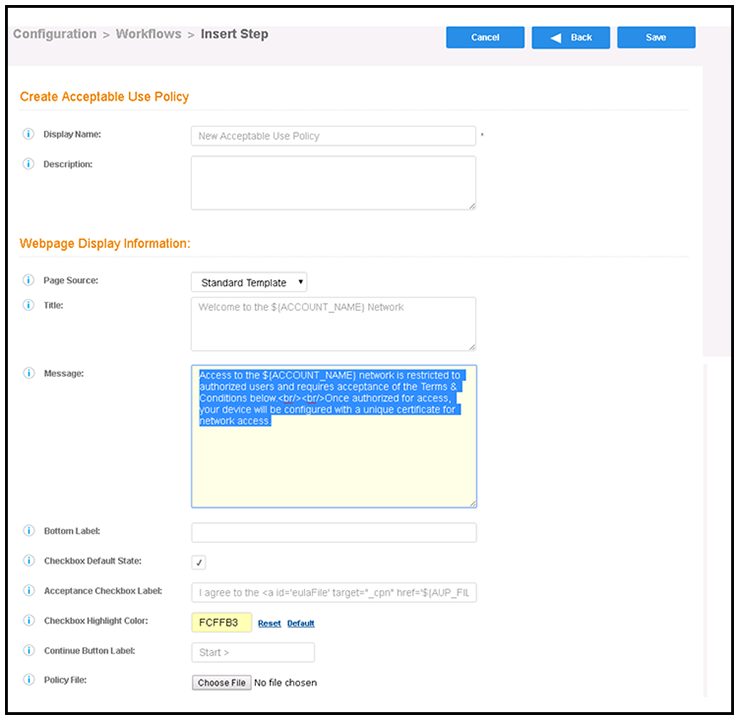
- If you are creating a new workflow, you are prompted early in the enrollment step-selection process to create an AUP step. If you are editing an AUP step in an existing workflow, such as the example above, click the edit icon to open the AUP page. The screen below shows an AUP page before any configuration has been performed.
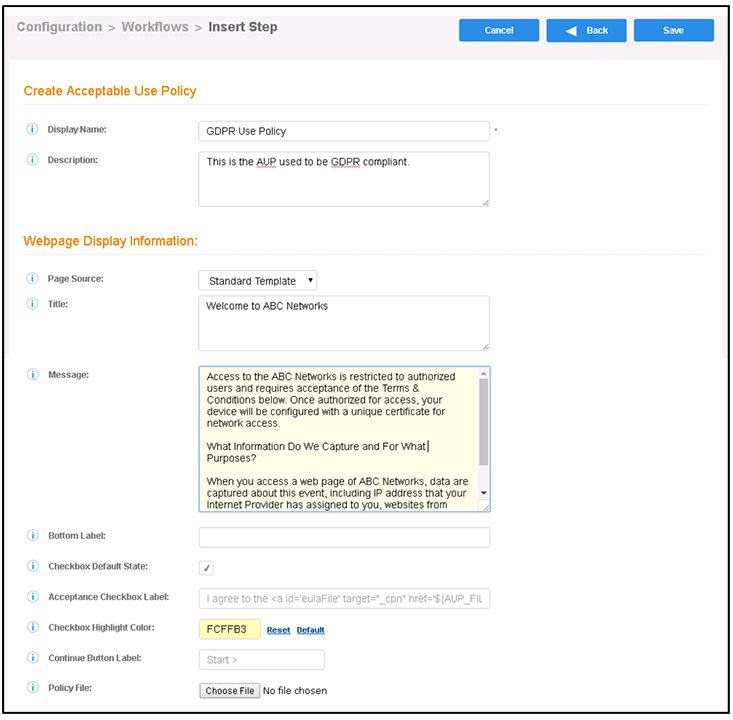
- Complete the information in this screen (see the figure below for an example), and
be sure to edit the
Message box to include the following information:
- A list of all personally identifiable information (PII) data that the operator is collecting via Cloudpath and what it is being used for. Some examples of sections that you may want to include in the Message box could be titled as:
- A method for how the user can request that all personal data be purged if the user decides to stop using Cloudpath. The method of how this data can be purged is up to you as the Cloudpath system administrator to determine. For example, it could be a link that the user needs to click to then send some type of identifier (such as a MAC address) so that you can locate the user on the Enrollments page in the Cloudpath system.
- Perform the remaining steps for the workflow that are listed in the Deployment Guide, such as publishing and testing the Message box of the AUP step in the workflow.