DPSK Devices
The following table lists the properties that can be used in the body of a DPSK device-related request and/or are provided in the response body.
Resource: DPSK Devices
DPSK Devices URIs and Actions
The following table indicates the URIs that you can append to the root URI, along with the action you can take, and possible return codes you can receive.
DPSK Devices URIs and Actions
Example of Using GET to Obtain Information About Devices Connected to a Specific DPSK
This example demonstrates how to use a GET call to obtain a list of devices connected to a DPSK. In this example, two devices exist on DPSK15, as shown at the bottom of the following figure:
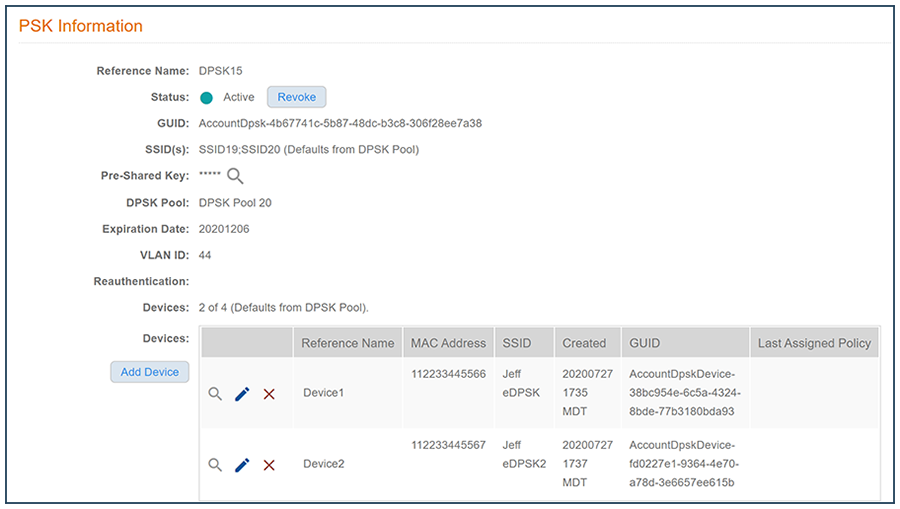
This example uses the following URI:
https://Jeff243.cloudpath.net/admin/publicApi/dpskPools/AccountDpskPool-14dc1ed8-ba2a-43bd-8cad-e30dc5f20fb8/dpsks/AccountDpsk-4b67741c-5b87-48dc-b3c8-306f28ee7a38/devices
- https://Jeff243.cloudpath.net/admin/publicApi is the root URI of the Cloudpath system being used (must include https, as shown)
- AccountDpskPool-14dc1ed8-ba2a-43bd-8cad-e30dc5f20fb8 is the GUID of the DPSK pool that the DPSK belongs to.
- AccountDpsk-4b67741c-5b87-48dc-b3c8-306f28ee7a38 is the GUID of DPSK15, which is the DPSK whose devices will be displayed upon a successful GET request.
The following table shows the required request headers for this URI example, with an example value of an active token that must be pasted into the Authorization header value:
Request Headers
| Key | Value |
|---|---|
| Content-type | application/json |
| Authorization | eyJhbGciOiJIUzI1NiJ9.eyJzdWIiOiJqZWZmLnJob2RpZUBjb21tc2NvcGUuY29tIiwicm9sZVBrIjoiMjEwMDAiLCJhY2NvdW50QWRtaW5QayI6IjIiLCJhcGlLZXkiOiJaV2NjTGpQZUdZMGUiLCJpYXQiOjE1NzU1NzUxNTcsImV4cCI6MTU3NTU3NTQ1N30.2q4KTyDUevkAAz7mJyp529Be1-ip3EC8P06Xarmz5ao |
No request body is needed for this request. All the necessary information is in the URI.
Use the GET action to send the request.Once the request is sent, you will receive a "Status: 200 OK" if the GET is successful. The response body below lists information for the two devices connected to the DPSK. You can check the output against what is shown in the UI (see figure above).
{
    "page": {
        "page": 1,
        "pageSize": 2,
        "totalCount": 2
    },
    "contents": [
        {
            "guid": "AccountDpskDevice-fd0227e1-9364-4e70-a78d-3e6657ee615b",
            "displayName": "Device2",
            "macAddress": "112233445567",
            "pmk": "",
            "ssid": "Jeff eDPSK2",
            "createdDate": "2020-07-27T23:37:11Z",
            "links": [
                {
                    "rel": "self",
                    "href": "https://jeff243.cloudpath.net/admin/publicApi/dpskPools/AccountDpskPool-14dc1ed8-ba2a-43bd-8cad-e30dc5f20fb8/dpsks/AccountDpsk-4b67741c-5b87-48dc-b3c8-306f28ee7a38/devices/AccountDpskDevice-fd0227e1-9364-4e70-a78d-3e6657ee615b",
                    "hreflang": null,
                    "media": null,
                    "title": null,
                    "type": null,
                    "deprecation": null
                },
                {
                    "rel": "parent",
                    "href": "https://jeff243.cloudpath.net/admin/publicApi/dpskPools/AccountDpskPool-14dc1ed8-ba2a-43bd-8cad-e30dc5f20fb8/dpsks/AccountDpsk-4b67741c-5b87-48dc-b3c8-306f28ee7a38",
                    "hreflang": null,
                    "media": null,
                    "title": null,
                    "type": null,
                    "deprecation": null
                }
            ]
        },
        {
            "guid": "AccountDpskDevice-38bc954e-6c5a-4324-8bde-77b3180bda93",
            "displayName": "Device1",
            "macAddress": "112233445566",
            "pmk": "",
            "ssid": "Jeff eDPSK",
            "createdDate": "2020-07-27T23:35:32Z",
            "links": [
                {
                    "rel": "self",
                    "href": "https://jeff243.cloudpath.net/admin/publicApi/dpskPools/AccountDpskPool-14dc1ed8-ba2a-43bd-8cad-e30dc5f20fb8/dpsks/AccountDpsk-4b67741c-5b87-48dc-b3c8-306f28ee7a38/devices/AccountDpskDevice-38bc954e-6c5a-4324-8bde-77b3180bda93",
                    "hreflang": null,
                    "media": null,
                    "title": null,
                    "type": null,
                    "deprecation": null
                },
                {
                    "rel": "parent",
                    "href": "https://jeff243.cloudpath.net/admin/publicApi/dpskPools/AccountDpskPool-14dc1ed8-ba2a-43bd-8cad-e30dc5f20fb8/dpsks/AccountDpsk-4b67741c-5b87-48dc-b3c8-306f28ee7a38",
                    "hreflang": null,
                    "media": null,
                    "title": null,
                    "type": null,
                    "deprecation": null
                }
            ]
        }
    ]
}