Adding a Device Configuration to Your Workflow
Be sure you have added a device configuration step before publishing the workflow.
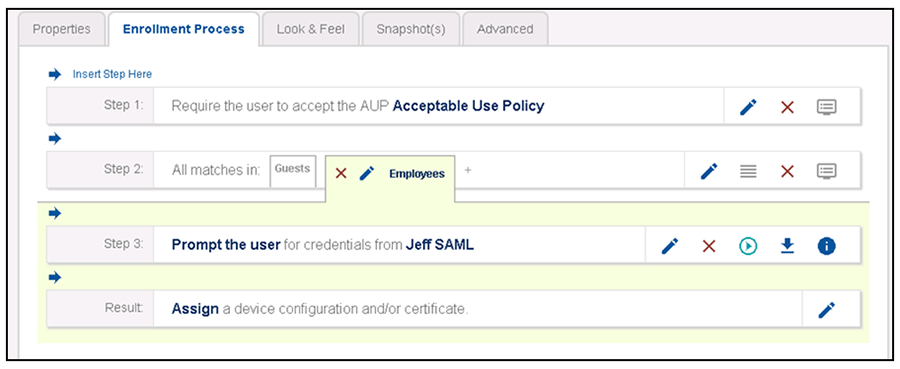
- In the workflow, click Assign in the Result step:
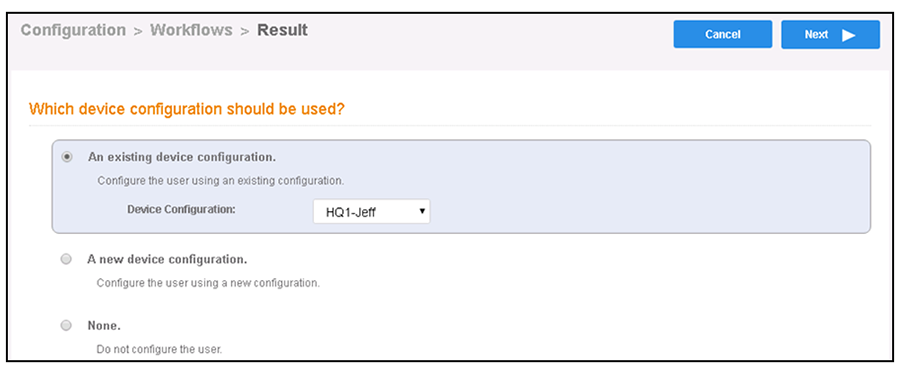
- Next, you can either select an existing device configuration from the drop-down or you can add a new device configuration. In the example below, an existing device configuration is selected to move the user to an already configured secure network during the enrollment process.
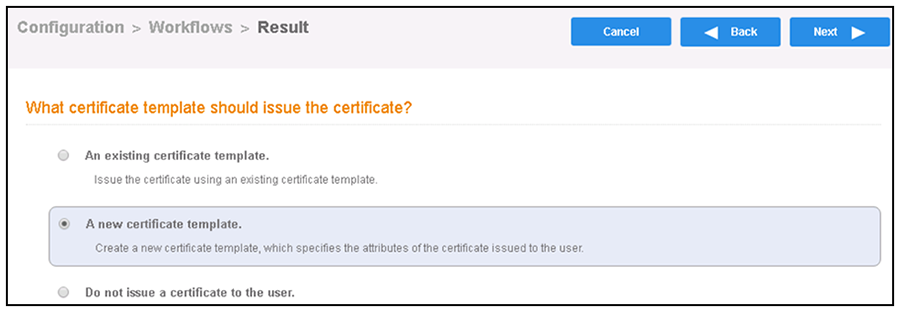
- Select the radio button to create a new certificate template, as shown below, then click Next.
- On the next screen, called "Which CA should sign the certificates?", click Next.
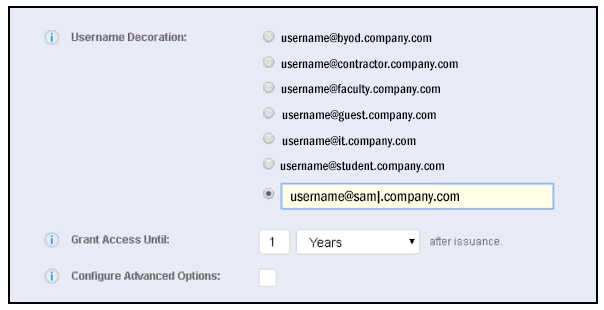
- In the Manage Templates > Create screen, in the "Username Decoration" section, select the bottom radio button, then edit it accordingly to denote that it will be used for your SAML authentication. See the figure below for an example:
- When you are returned to your workflow, make sure that your device and certificate template configurations appear as part of the result step.
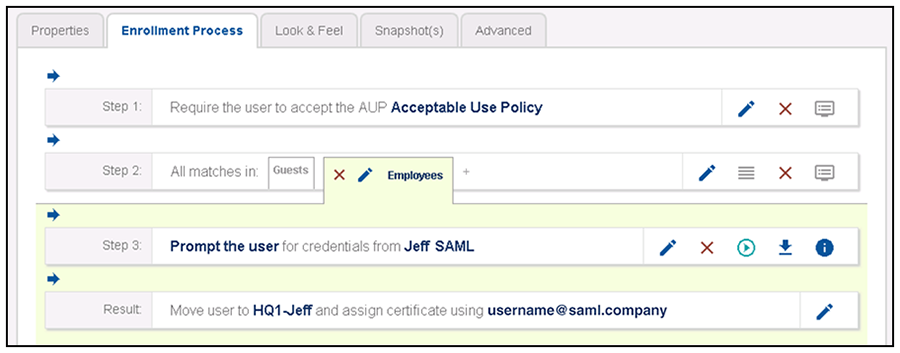
Return to the SAML section that referred you to this device configuration section. You will be instructed to publish your workflow.