Creating a DPSK in an Existing eDPSK Pool
You can manually generate DPSKs from within a configured eDPSK pool.
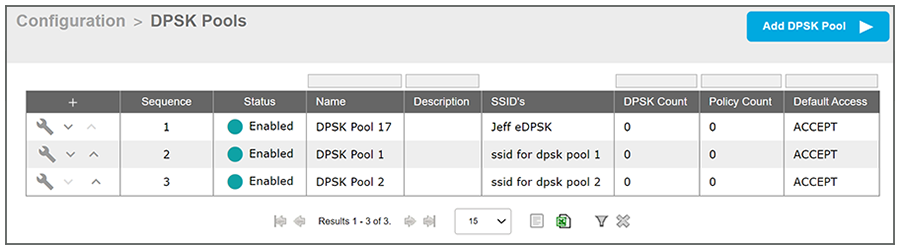
- In the Cloudpath UI, go to Configuration > DPSK Pools to view all existing pools.
-
new screen shot and updated steps for 5.8
- Click the wrench icon for the desired pool; for example the DPSK Pool 17 entry in the screen above.
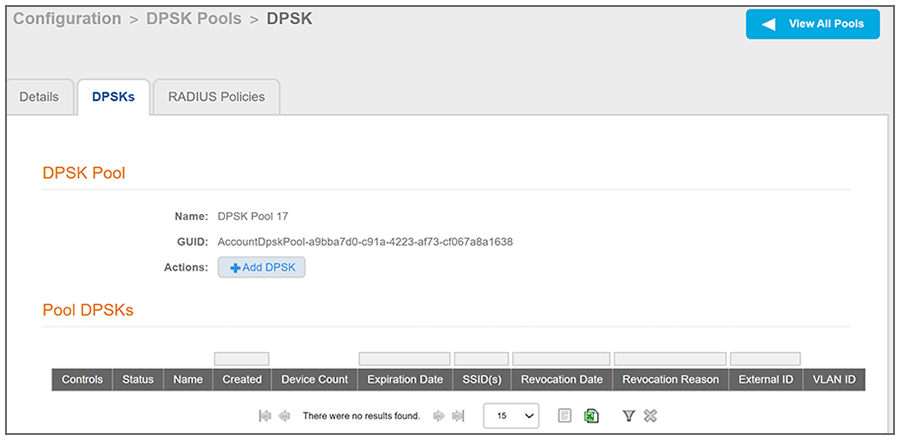
- In the ensuing screen, click the DPSKs tab to bring up the following screen:
- Click Add DPSK.
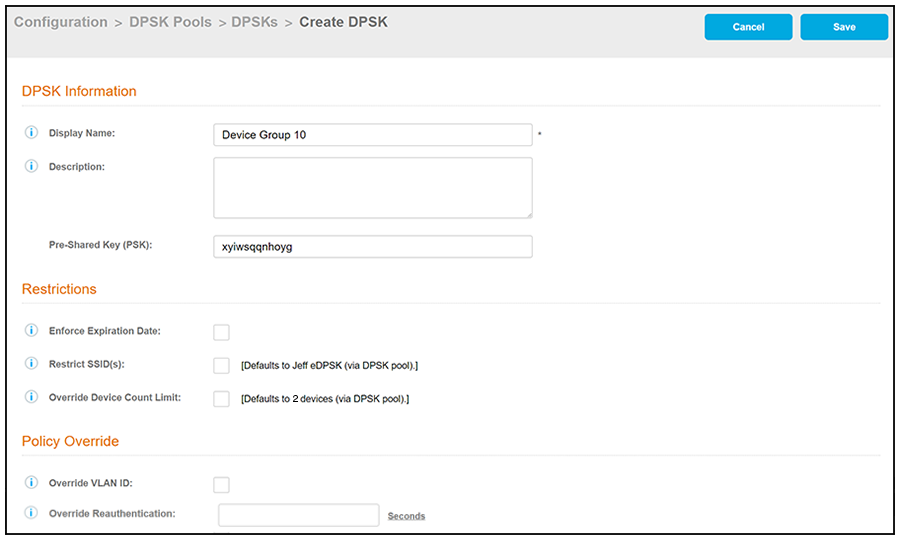
- In the ensuing screen, configure the values for the new DPSK, and click
Save when you are done. The figure below shows sample data, followed by descriptions of
the various fields.
- Display Name: Provide a descriptive name; the name is visible to administrators only.
- Description: Optionally, you can describe the DPSK; for example, you might want to list the device type to which you plan to assign this DPSK.
- Pre-Shared Key: This is the auto-generated key, which adheres to the character limit
and character type configured for the pool.
Note: Should you choose to manually specify a pre-shared key, the key must be unique to the pool and between 8-63 characters in length.
- Enforce Expiration Date: If this box is checked, the DPSK will expire on the date shown in the "Expiration Date" field, which is determined by the configuration for the corresponding eDPSK pool. However, if this box is not checked, the DPSK will not expire. The Expiration Date field does not appear unless the box for Enforce Expiration Date is checked.
- Restrict SSID(s): This field is unchecked by default, which means that the allowable SSIDs for this DPSK are the same as the SSIDs configured for the corresponding pool. However, you can further restrict this SSID list for the DPSK by checking this field, then entering a subset of the eDPSK pool's SSIDs into the "SSID(s)" popup box.
- Override Device Count Limit: By default, this box is unchecked, which means that the DPSK uses the device count limit specified within the eDPSK pool. If checked, however, this DPSK can have its own device count limit that you specify in the popup "Device Count Limit" box.
- Override VLAN ID: By default, this box is unchecked, which means that the DPSK uses
the VLAN ID specified in the RADIUS attribute group of the corresponding policy (once
you add a policy to the pool). If checked, you can specify a VLAN ID in the popup
"VLAN ID" field that will override that VLAN ID. For example, if you specify an Override
VLAN ID of 10, the RADIUS reply (access-accept) for the DPSK will contain the attributes
(tunnel-type, tunnel-medium-type, private-tunnel-group-id) to set the VLAN to 10,
regardless of what VLAN ID gets assigned to the pool.
Shannon - Plz check this wording to see if it's ok.
- Override Reauthentication: If you enter a value in this field, that value becomes the reauthentication timeout for this DPSK and overrides the Reauthentication period specified within the DPSK pool.
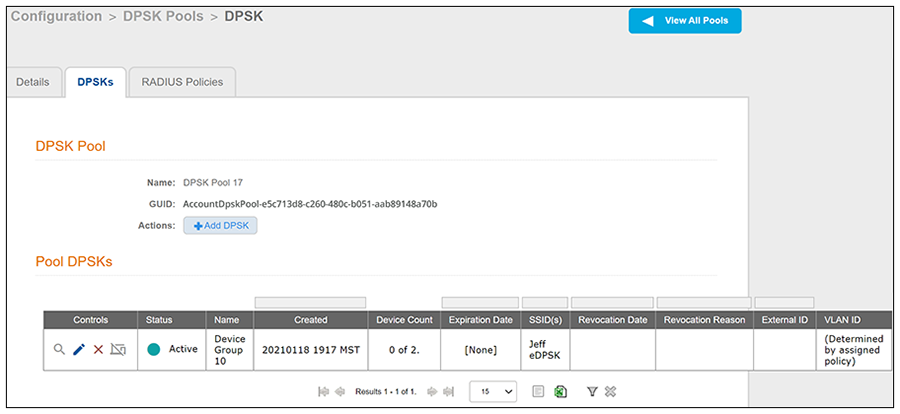
- After you have saved the DPSK, the newly added DPSK is shown as part of the pool. Check that the information for the DPSK is what you want. An example is shown below, where a DPSK named "Device Group 10" has been added to DPSK Pool 17: