Configuring Cloudpath
Create a Microsoft CA Certificate Template
- Navigate to .
- Click Add Template to create a new certificate template.
- Select Use a Microsoft Certificate Authority. Click Next.
- Enter the URL of the DLL.
Cloudpath communicates with the Integration Module DLL using HTTPS, so Cloudpath needs to know the URL of the DLL.Note: If you configure or change settings in the Microsoft CA certificate template, then you must download and install a new copy of the DLL and files.
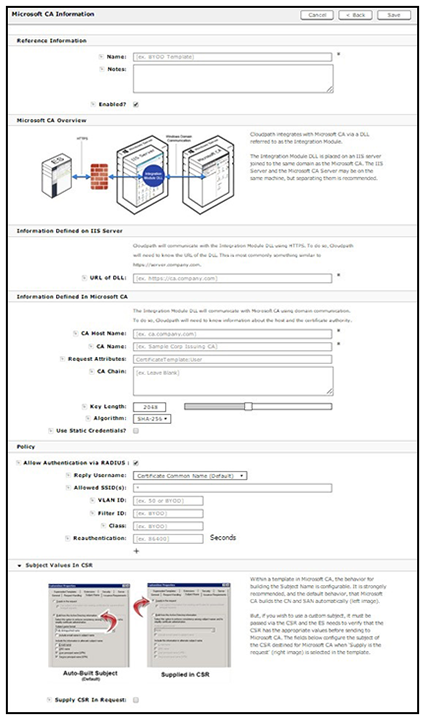
- On the Microsoft CA Information page, enter the Name and Notes for the certificate template, and Enable it for use.
- Enter the Integration Module Configuration settings.
- Enter the
Communication Information, and click
Save.
The Microsoft CA URL is a required field.
- Microsoft CA URL: Enter the URL where the Microsoft CA is installed. You must enter
the complete URL, for example, https://msft-ca.testcompany.com.
Tip: If using multiple certificate templates with the Microsoft CA, the CA URL should reflect the certificate template name. For example, if you create one certificate template for staff and one for guests, the Microsoft CA URLs should be https://msftca. testcompany.com/staff, and https://msft-ca.testcompany.com/guests, respectively. See Multiple Certificate Templates.
- CA Chain: Specify the CA Chain. The client configuration must include the root, and if applicable, the intermediate CAs. The certificates should be concatenated together in PEM format.
- Key Length: The key length, as dictated by the CA, for certificate signing requests.
- Algorithm: The algorithm, as dictated by the CA.
- Use Static Credentials: By default, the system uses user-provided credentials when interacting with the Microsoft CA. Check this box if you want to configure static username and password to use when interacting with the Microsoft CA.
- Microsoft CA URL: Enter the URL where the Microsoft CA is installed. You must enter
the complete URL, for example, https://msft-ca.testcompany.com.
- Specify policy information for the RADIUS server.
If enabled, the RADIUS server will contain policy information for this certificate template.
- Reply Username: The RADIUS server replies with the username based on the CN of the certificate but, additional options are available.
- Allowed SSID: Enter a regex, which defines the SSID(s) from which devices are allowed to authenticate.
- RADIUS Attributes: Specify a VLAN, Filter ID, Class, Reauthentication interval, or use the plus icon to add custom attributes.
- Use the Specify Subject Values in CSR settings if you want to configure the subject of the CSR destined for Microsoft CA when the template is set to "Supply in request."