How to Add LinkedIn Authentication to the Workflow
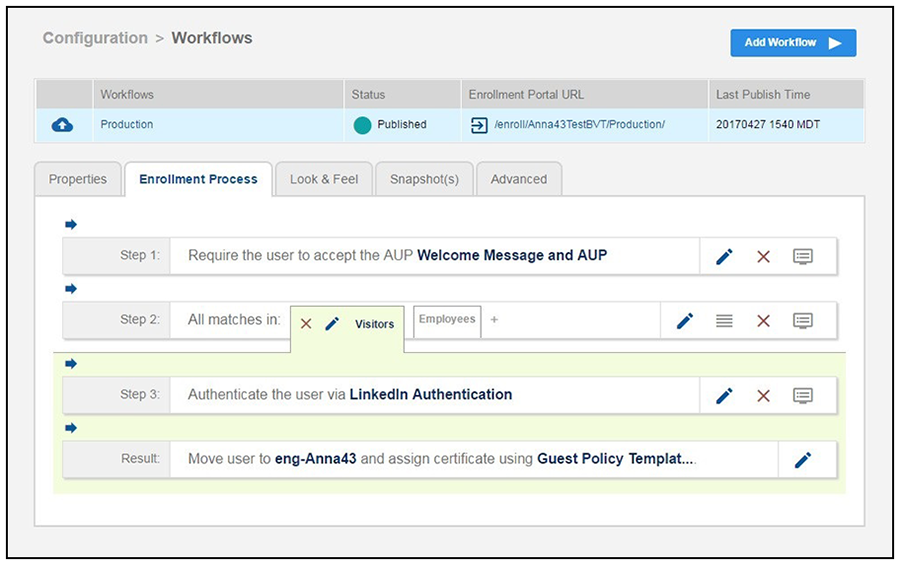
You can add a step to the enrollment workflow to authenticate a user by using the LinkedIn application.
- Create an enrollment workflow for third-party authentication.
- Add an enrollment step that prompts the user to authenticate through a third-party source. The Third-Party Authentication Setup page allows you to specify which third-party sources are allowed as well as API information related to those sources.
- Place the authentication step after the User Type option.
- Enter the Name and Description of this configuration.
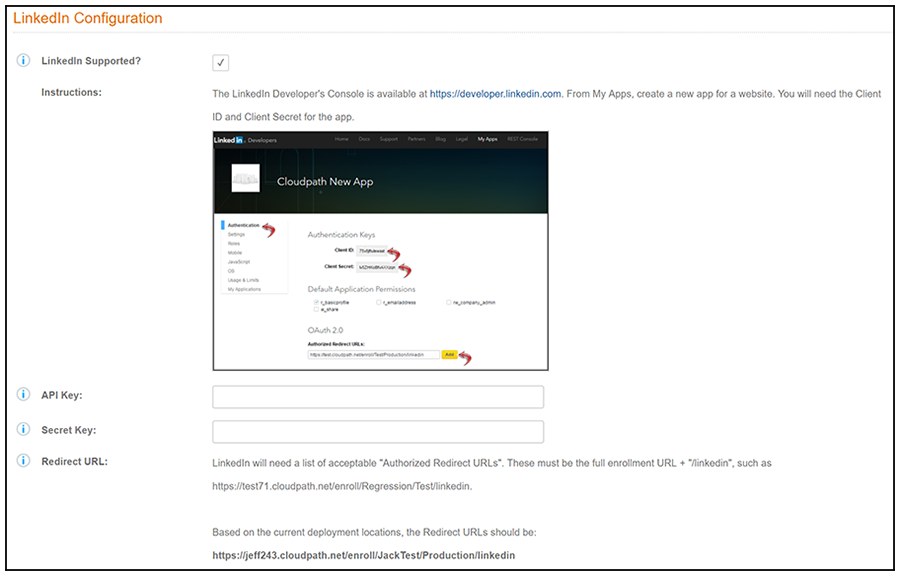
- Scroll down to the LinkedIn Configuration section, and check the LinkedIn Supported? box.
- In the API Key field, enter the Client ID from the LinkedIn Auth Tab Settings of Newly Created Application screen (refer to Auth Tab Settings of Newly Created Application - Top Part of Screen).
- In the Secret Key field, enter the Client Secret from the LinkedIn Auth Tab Settings of Newly Created Application screen(refer to Auth Tab Settings of Newly Created Application - Top Part of Screen).
- Click Save. The LinkedIn authentication step is added to your enrollment workflow.