Navigating the Root Account
Accounts
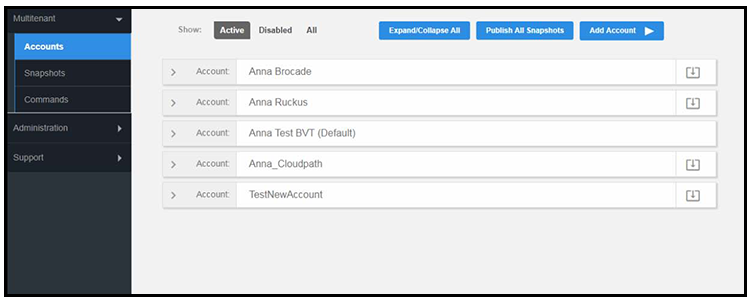
In the Accounts tab view, tenant accounts are displayed according to the Active, Disabled, or All tabs at the top of the page. Click the arrow to the left of the account name to view account details, or click Expand/Collapse All button at the top of the page.
Changing Into a Tenant Account From the Root Account
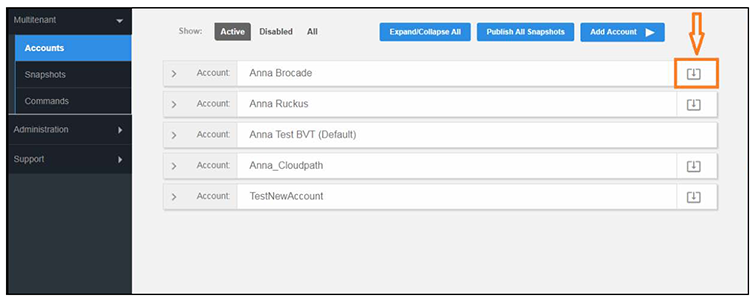
From the root account, use the down arrow to the right of the tenant account change into the account as an administrator for the tenant account.
Snapshots
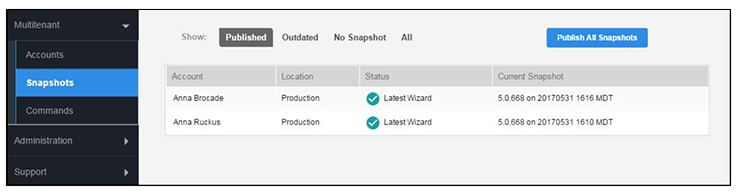
This summary view provides a glimpse into successful snapshots and the latest client version for each tenant account.
Commands
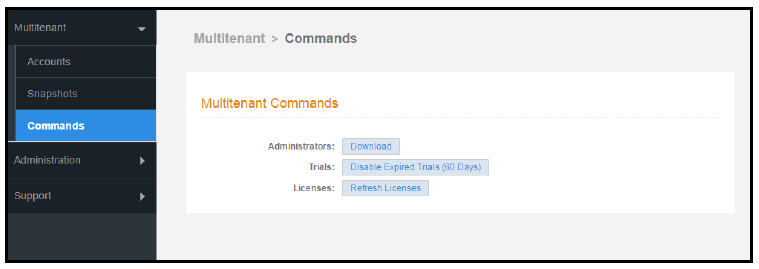
The multi-tenant commands are shortcuts for root account administration.
Click Download to obtain the email address of all administrators, as needed for system communications, such as upgrade notices.
If your system is set up for trial accounts, click Disable Expired Trials when you want to disable expired accounts and free up RADIUS ports.
Click Refresh Licenses to refresh license information between the multi-tenant system and the Cloudpath license server.
Administration - Administrators
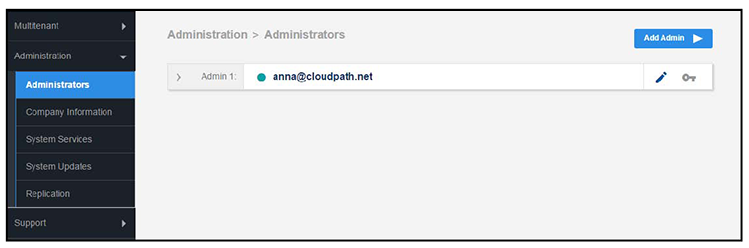
During the initial system setup, Cloudpath sets up an administrator for the root account.
Additional administrators for the root account can be added from the left menu Administration tab, or you can enable Administrator logins from your authentication servers.
Cloudpath supports the following Administrator Roles for the root account:
CA Administrator—Allows full configuration access to the Administrative UI. This administrator role can manage all administrative users.
Administrator—Allows full configuration access to the Administrative UI, except for Certificate Authorities. This administrator can manage Administrator and Viewer administrative users.
Viewer—Allows view-only access to Enrollment, User, and Certificate records on the Dashboard, the enrollment Workflow, and the Documentation and Licensing pages. This administrator cannot manage other administrative users.
Administration - Company Information
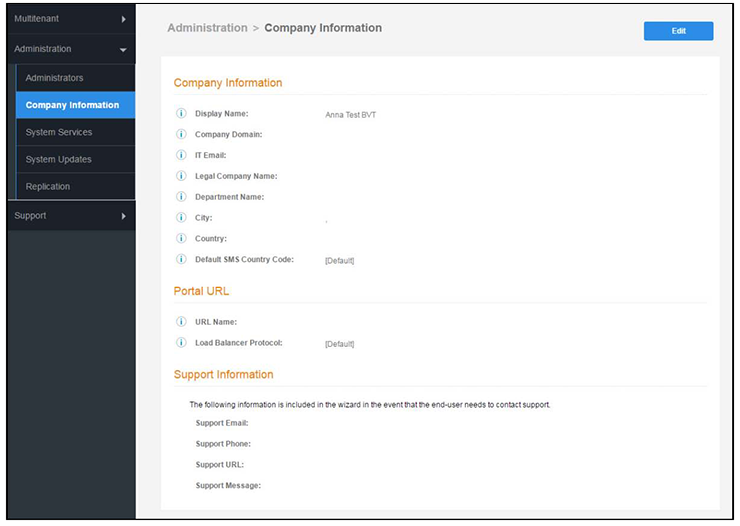
Company Information is typically entered during the initial system setup but can be managed from the screen. The data from this page is used within the URL for enrollments and sponsorships, and included in the onboard CAs.
Administration - System Services
Navigate to to restart or view logs for the application server, web server, configure email or SMS servers, or start up a support tunnel.
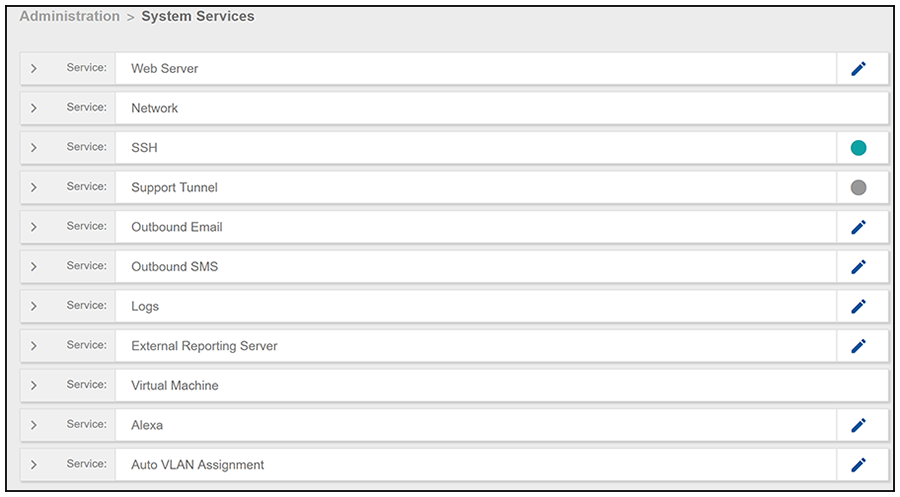
System services for the root account include:
Web Server—Download the Apache Server access and error logs from the Web Server component. You can also Restart the web server, generate a CSR, edit administrative access restrictions, and download or upload the web server certificate, or if needed, upload a code certificate.
Network—The Network service displays network properties for Cloudpath, and provides access to view or download the diagnostic logs.
SSH—Use the SSH service to enable, disable or change the access port. SSH runs on ports 22 and 8022. You can set the port number using the command line or from the user interface. Even if you disable SSH access for both ports, SSH can continue to run.
Support Tunnel—The Support Tunnel service allows you to open a support tunnel to help you in diagnosing issues with your application or configuration.
Outbound Email—Use the onboard email provider or configure a local email server.
Outbound SMS—Use the onboard SMS provider, enter a CDYNE account or route SMS message through a customer-owned account.
Logs—Configure where syslog messages are sent. You can enable the syslog, select the protocol over which the syslog messages are sent, and enter a host and port number.
External Reporting Server—Allows you to integrate Cloudpath enrollment data with a reporting server, such as the ELK stack (Elasticsearch, Logstash, and Kibana).
- Virtual Machine - Displays the system clock and system information about the virtual machine. You can also reboot or shut down the virtual machine from this page.
- Alexa - Allows you to bind or unbind Alexa, remove old binding data, or get Alexa log files.
- Auto VLAN Assignment - Allows you assign available VLAN IDs from a configured range of VLANs to users during their enrollment.
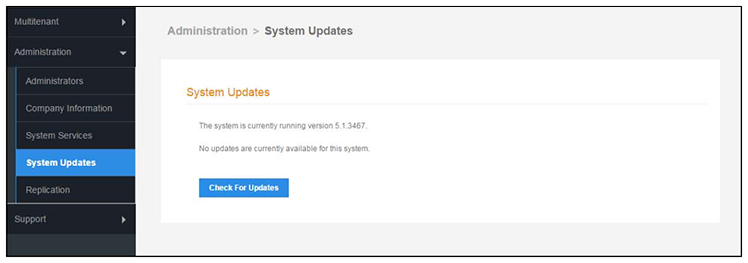
Administration - System Updates
From the System Updates page, view and manage your existing build version, scan check for updates, and apply support patches.
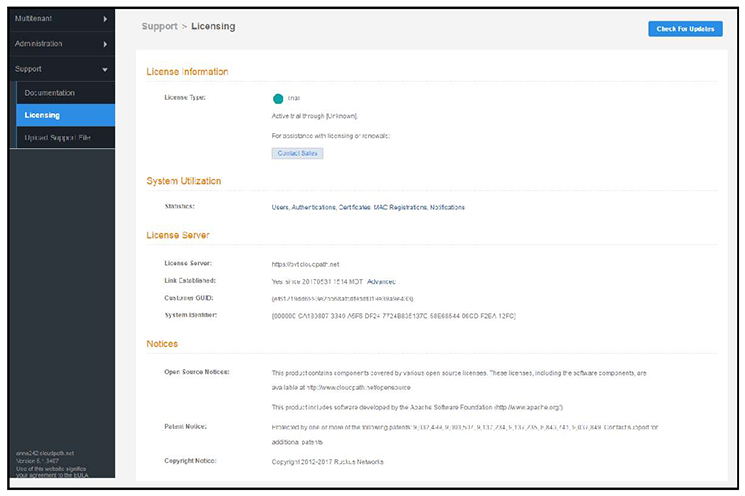
Support - Licensing
The Licensing page displays information about system licenses, active certificates, usage statistics, and copyright notices.
Support - Diagnostics
The Diagnostics page provides useful tools for system troubleshooting connectivity issues, and verifying certificate information.
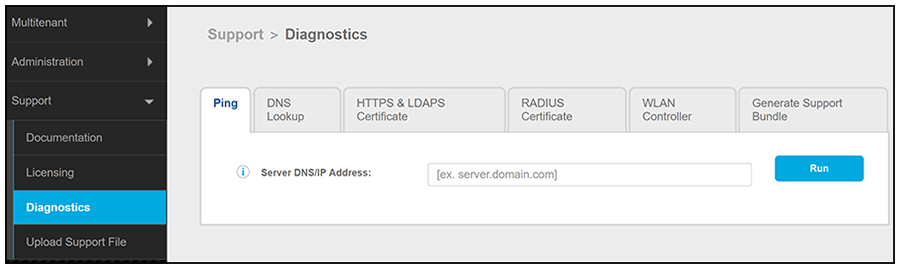
The diagnostics includes:
Ping—Ping an IP address or hostname.
DNS Lookup—Provide server information and IP address for a given hostname.
HTTPS & LDAPS Certificate—Query the server certificate used by a secured server (HTTPS, LDAPS, etc.) to verify the certificate currently in use by a server.
RADIUS Certificate—Query the RADIUS server certificate and the chain presented by the RADIUS server. This is useful to verify the certificate currently in use by a RADIUS server. For this test to work, the Cloudpath ES must be able to reach the IP and port, the shared secret must be correct, and the Cloudpath ES must be an approved client for the RADIUS server.
WLAN Controller—Query the WLAN controller to check if required ports are accessible.
-
New for 5.4Generate Support Bundle: Click Run from this tab to generate a zip file that contains log files and metrics information to provide to your Ruckus support representative.
Support - Upload Support File
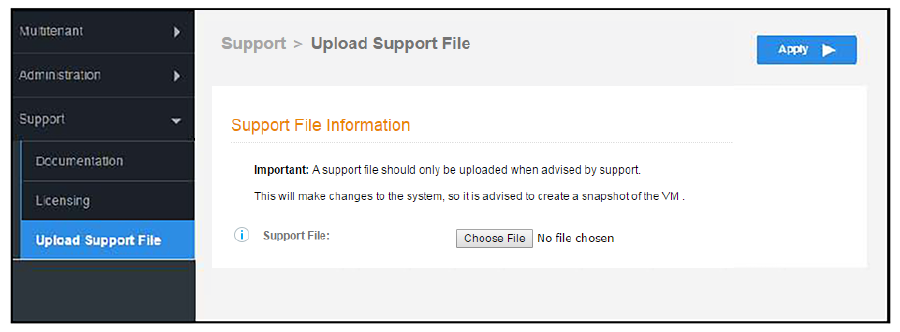
If Cloudpath Support has provided a support file, you can upload it on this page. This will make changes to the system, so we recommend that you create a VMware snapshot first.