Configuring Gateway Mode
The Master AP can be configured to serve
as a gateway router.
- Go to .
- Under IP Settings,
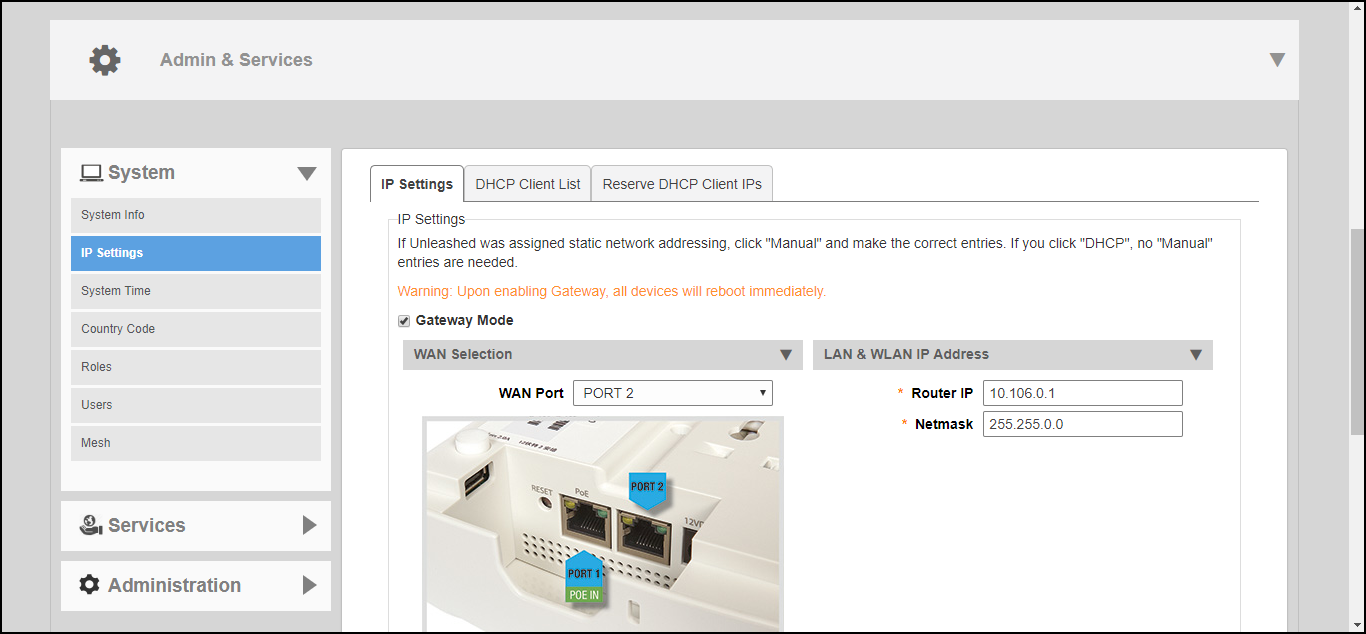
enable the Gateway
Mode option and configure the WAN and LAN IP address settings. Note: Alternatively, in the factory default state, you can connect to the Master AP and perform the initial setup as described in step 2b - Setup Using a Web Browser. On the second wizard screen (Management IP) select Enabled in Gateway Mode. Refer to Advanced Install for more information.
- Designate which port will be the WAN (uplink) port. The Gateway AP must have at least two Ethernet ports. Under WAN Selection, use the AP diagram to identify which port is LAN1 and LAN2 on the AP, and select the relevant port from the WAN Port list.
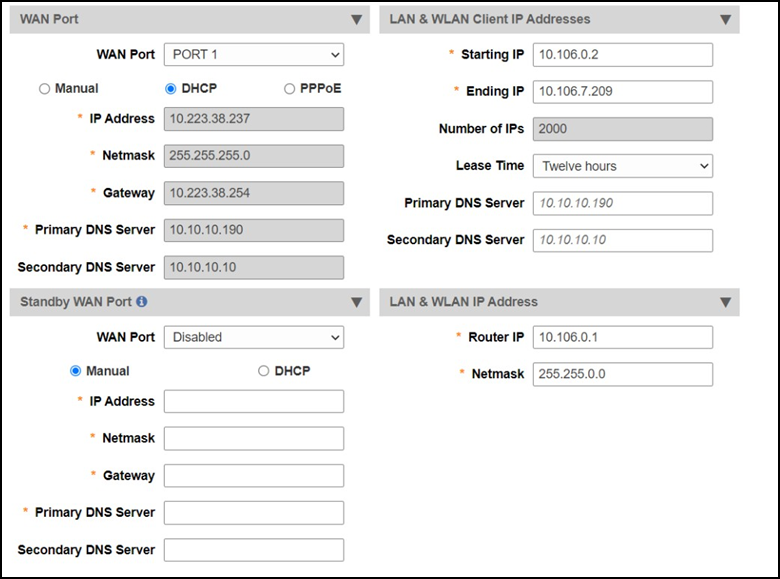
- Configure how the WAN (uplink) port obtains its IP address:
- DHCP (Dynamic): When DHCP (Dynamic) is selected, the WAN port is assigned an IP address automatically.
- Manual (Static): When Manual (Static) is selected, enter an IP address, netmask, gateway address, and primary DNS server addresses in the required fields, and (optionally) enter the secondary DNS server address.
- PPPoE: When PPPoE is selected, enter the PPPoE username and PPPoE password in the fields provided.
- Configure local subnet settings
for the LAN port:
- LAN & WLAN Client IP Addresses
- Starting IP and Ending IP: Enter the first and last IP addresses that will be issued in this scope.
- Number of IPs: Enter the total number of addresses in this scope.
- Lease Time: Select a duration for IP address lease time from the list.
- Primary DNS Server and Secondary DNS Server: Enter the primary and secondary DNS server addresses.
- LAN & WLAN IP Address
- LAN & WLAN Client IP Addresses
- Designate which port will be the
standby WAN (uplink) port and configure how the standby WAN port obtains its
IP
address:
- DHCP (Dynamic): When DHCP (Dynamic) is selected, the WAN port is assigned an IP address automatically.
- Manual (Static): When Manual (Static) is selected, enter an IP address, netmask, gateway address, and primary DNS server address in the required fields, and (optionally) enter the secondary DNS server address.
Note: A standby WAN port is applicable only for the H350 AP and H550 AP. - Click Apply. Once setup is complete, the Gateway AP will begin providing DHCP and NAT service for clients, and clients will be assigned IP addresses from the DHCP scope that you configured.