Upgrading the AP Firmware Using SmartZone 100 or Virtual SmartZone Controller
You can upgrade the existing AP firmware using a SmartZone 100 controller or Virtual
SmartZone.
Always back up the controller before attempting a software upgrade. If you are managing a multi-node cluster, back up the entire cluster, and then verify that the backup process has completed successfully. If you have an FTP server, back up the entire cluster and upload the backup files from all the nodes in a cluster to a remote FTP server.
Note: RUCKUS strongly recommends backing up the
SmartZone 100 controller cluster before performing an upgrade. If the upgrade
process fails for any reason, you can use the latest backup file to restore the
controller cluster.
Note: Before beginning the upgrade, you must obtain a
valid controller software upgrade file from RUCKUS Support or an authorized
RUCKUS reseller.
- Copy the software upgrade file that you received from RUCKUS to the computer where you are accessing the controller web interface or to any location on the network that is accessible from the web interface.
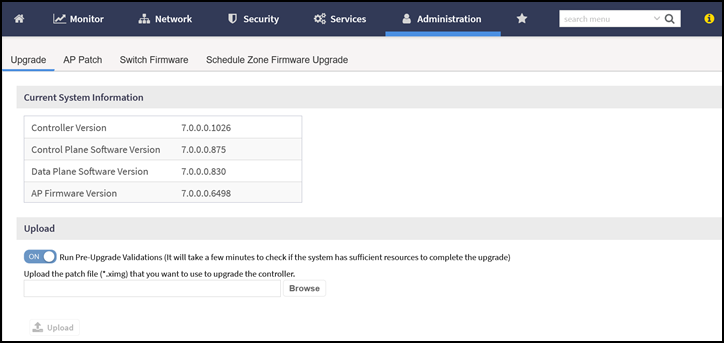
- From the SmartZone 100 user interface, click Administration > Upgrade.
- Select the Upgrade tab.
- Under
Upload, select
Run Pre-Upgrade Validations to verify if the data migration was successful. This option allows you to verify
data migration errors before performing the upgrade.
Note: You can still upgrade even if there are data migration errors.
- Click Browse to select the .ximg patch file.
- Click
Upload to upload the controller configuration to the configuration in the patch file.
The controller uploads the file to its database, and then performs file verification. After the file is verified, the Patch for Pending Upgrade section is populated with information about the upgrade file. If data migration was unsuccessful, the following error is displayed:
- If the controller configuration upload was successful, perform one of the following
steps:
- Click Upgrade to start the upgrade process without backing up the current controller cluster or its system configuration.
- Click Backup & Upgrade to back up the controller cluster and system configuration before performing the upgrade.
- From the Smartzone 100 user interface, click Access Points.
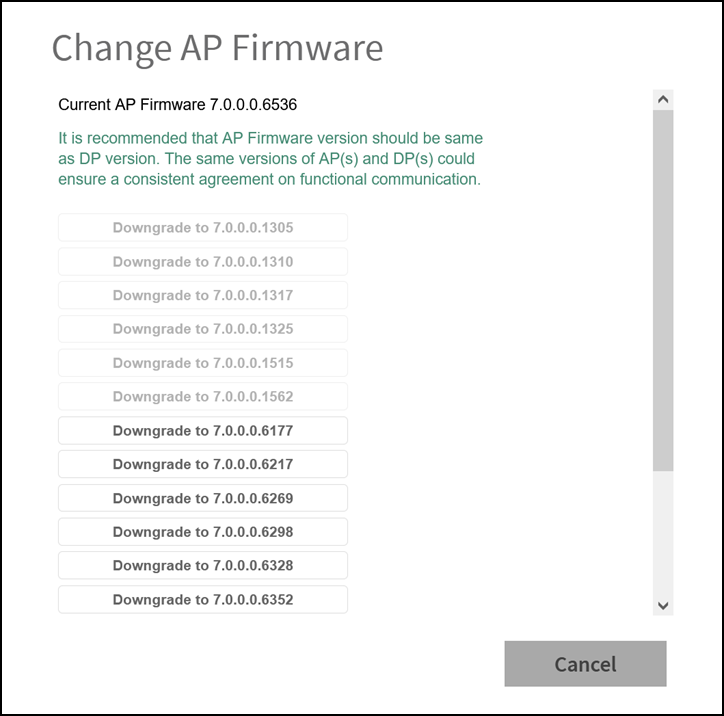
- Select the zone from the list, click More, and select Change AP Firmware from the list. The Change AP Firmware dialog box is displayed. The current AP firmware version is displayed.
- Click Upgrade to upgrade to the new firmware version.
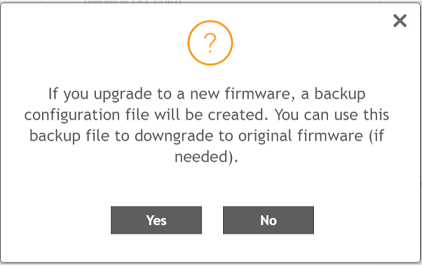
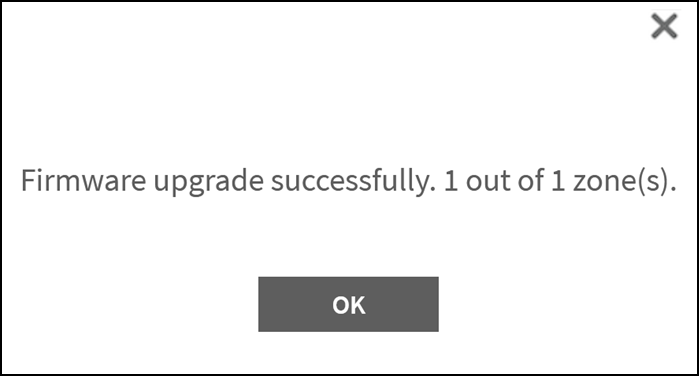
- Click Yes. A confirmation message is displayed stating that the firmware version was updated successfully.
- Click OK.