Activating a License
RUCKUS IoT Controller is a licensed product. The license model is based on a subscription. After purchasing RUCKUS IoT Controller, you are provided with a trial license that is valid for 90 days. You must purchase a subscription license based on your requirements before the expiration of the trial license. After purchasing RUCKUS IoT Controller, an email message is sent to you containing an activation code. Clicking the activation code directs you to the RUCKUS Support website. After the code is validated and attached to a device (the IoT Controller serial number), the license can be downloaded from the website.
Complete the following steps to activate the license.
- Click the activation code in the activation email message. You are redirected to the RUCKUS Support website (harp://6a7214064c282d8ad6c44b90/pr/ORIGINAL/RUCKUS%20IoT%20Controller%20Installation%20Guide,%202.2.1.0%20MR_v1_GUID-1516362D-3B1D-46A0-A704-A2A45CB16824/support.ruckuswireless.com). Log in to the website using your credentials.
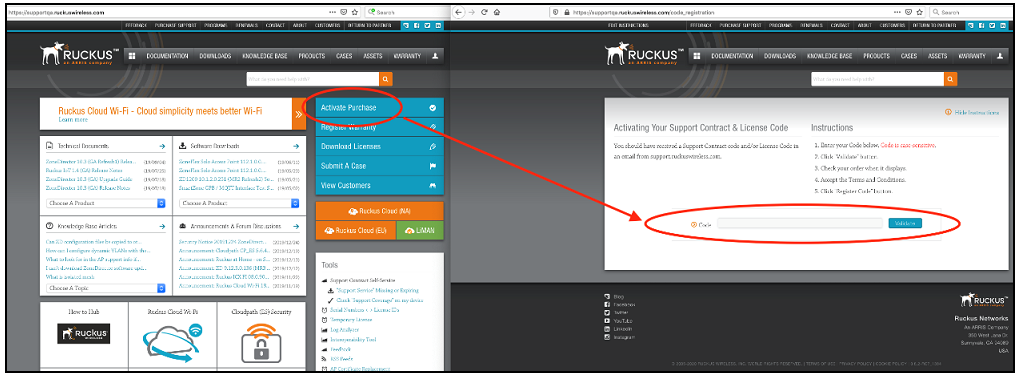
- Click Activate Purchase. The Activating Your Support Contact & License Code page is displayed. In the Code field, enter your activation code, and click Validate.
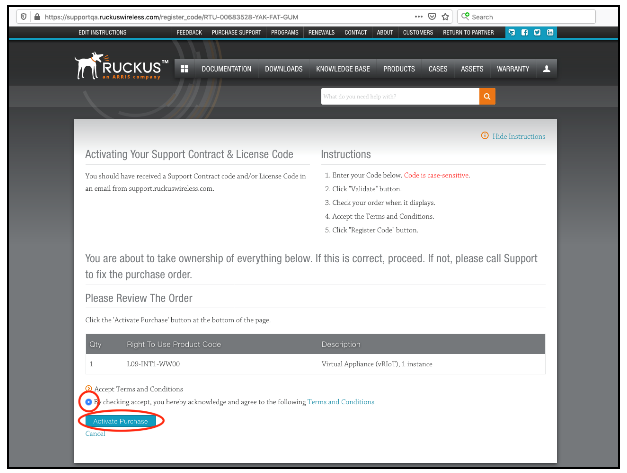
- After the successful validation of the license code, accept the Terms and Conditions, and click Activate Purchase.
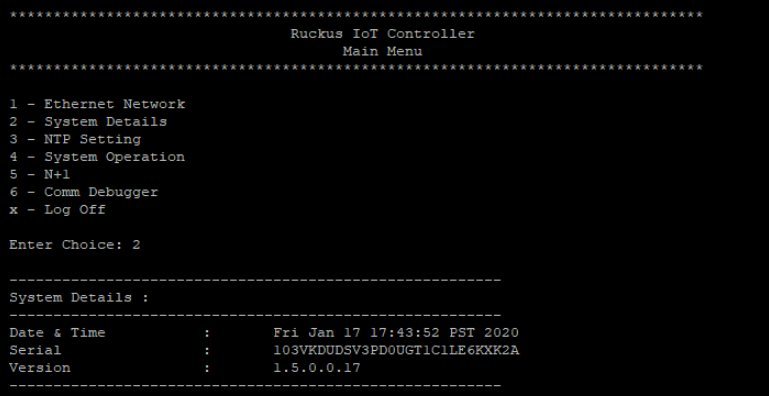
- Obtain the RUCKUS IoT Controller serial number in one of two ways:
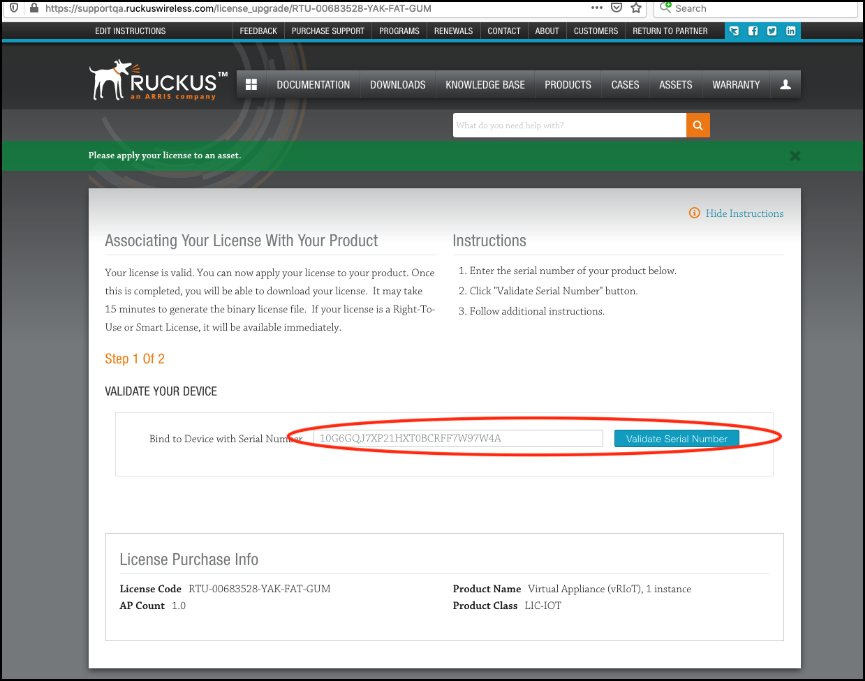
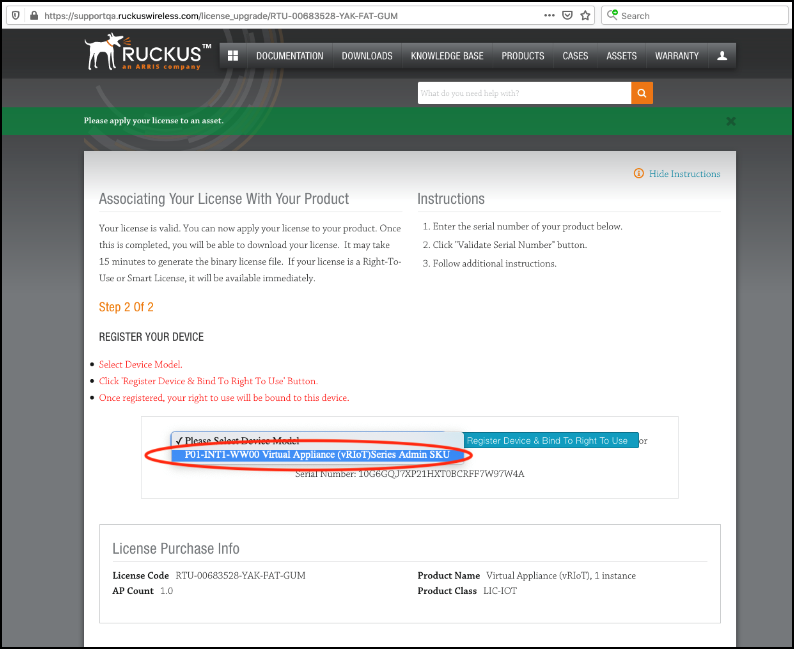
- On the Associating Your License With Your Product page, enter the
RUCKUS IoT Controller serial number, and click Validate Serial
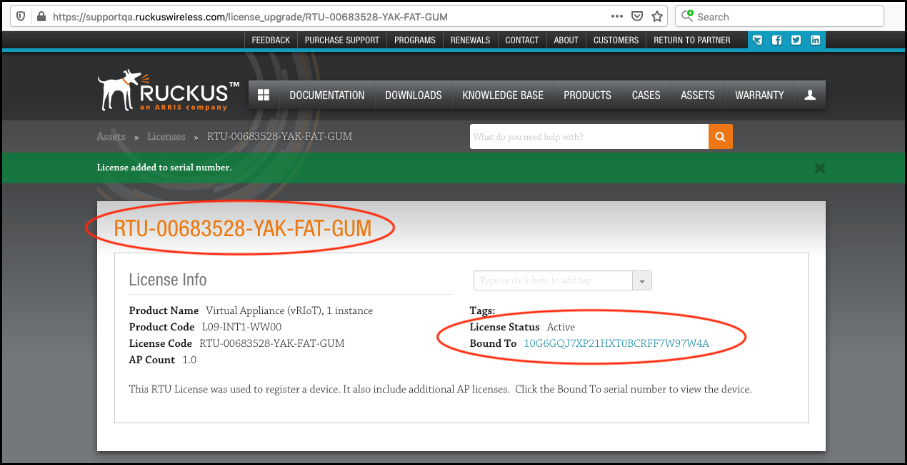
Number to activate the license. After successful validation, the registration page is displayed.
- Select the P01-INT1-WW00 device model number and click Register Device & Bind To Right To Use.
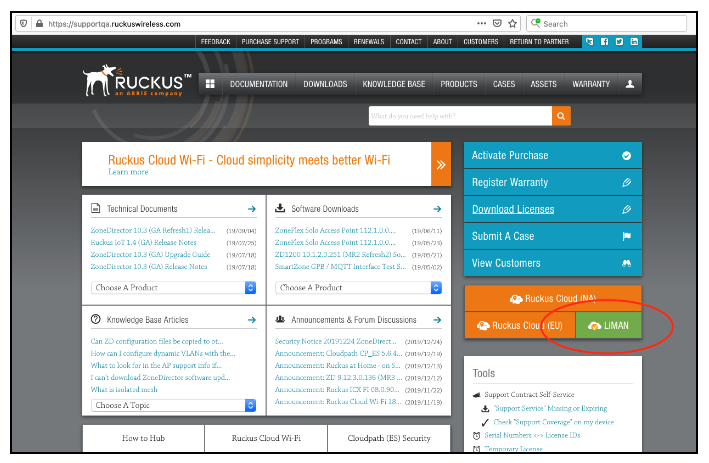
- Return to the RUCKUS Support website (harp://6a7214064c282d8ad6c44b90/pr/ORIGINAL/RUCKUS%20IoT%20Controller%20Installation%20Guide,%202.2.1.0%20MR_v1_GUID-1516362D-3B1D-46A0-A704-A2A45CB16824/support.ruckuswireless.com), and click LiMAN.
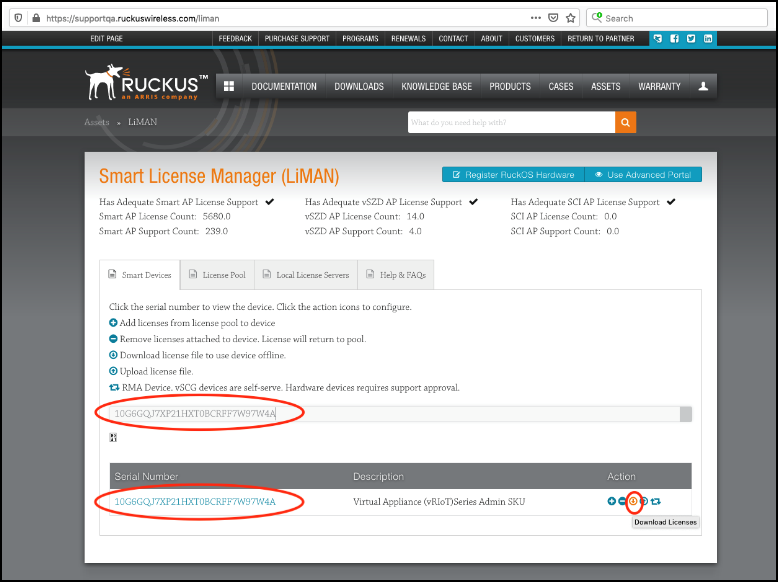
- In the
Smart License Manager (LiMAN) page, enter the serial number of the controller, and click the
Download Licenses button.
Note: The license must be uploaded to the controller.