Web Authentication Pages
Several different web pages may be displayed during Web Authentication.
When a user enters a valid URL, the user is redirected to the switch Web Authentication page (refer to Defining the Web Authorization Redirect Address).
If automatic authentication is enabled, a welcome page is displayed. The browser will then be directed to the requested URL.
If username and password (local user database) authentication is enabled, the following login page is displayed by default.
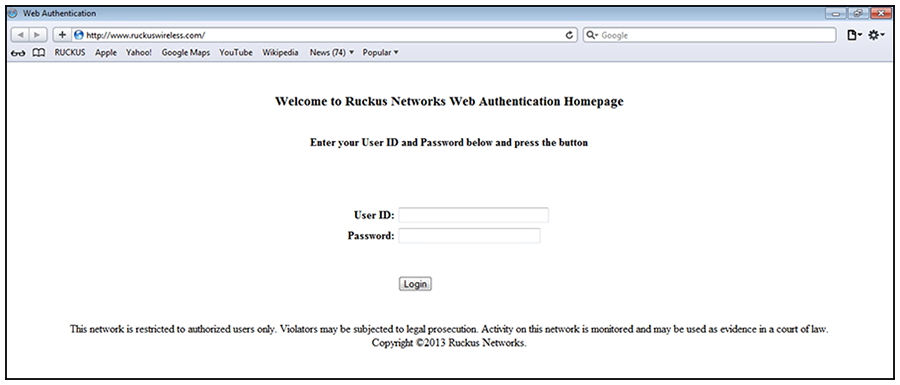
The user enters a username and password, which are sent for authentication.
If passcode authentication is enabled, the following login page is displayed.
Example of Login Page When Automatic Authentication Is Disabled and Passcode Authentication Is Enabled
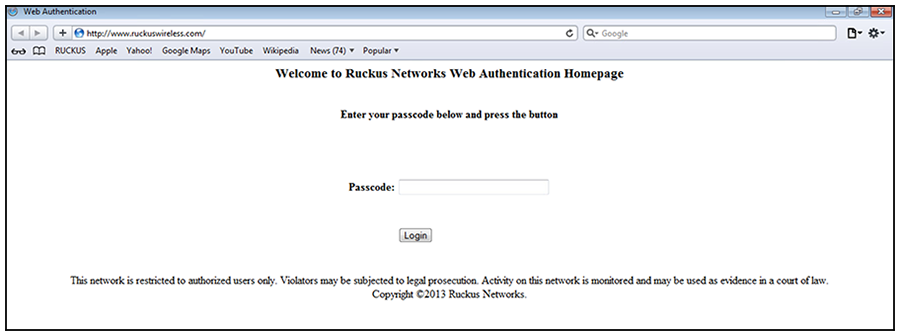
The user enters a passcode, which is sent for authentication.
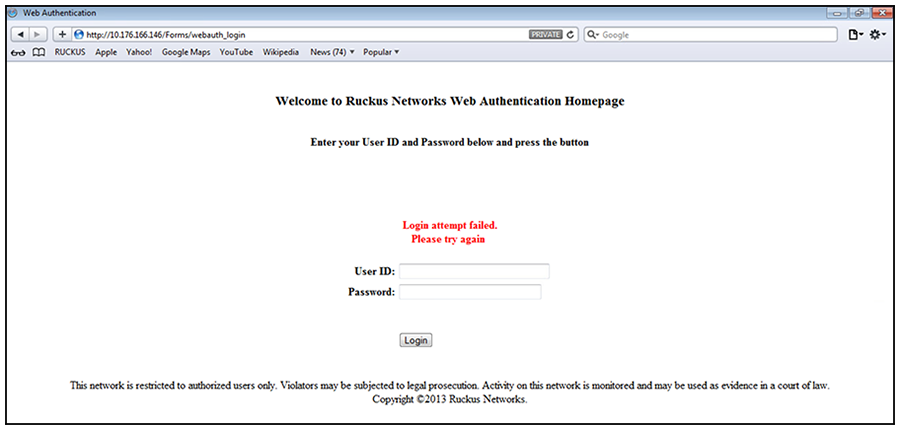
If Web Authentication fails, the following "try again" page is displayed.
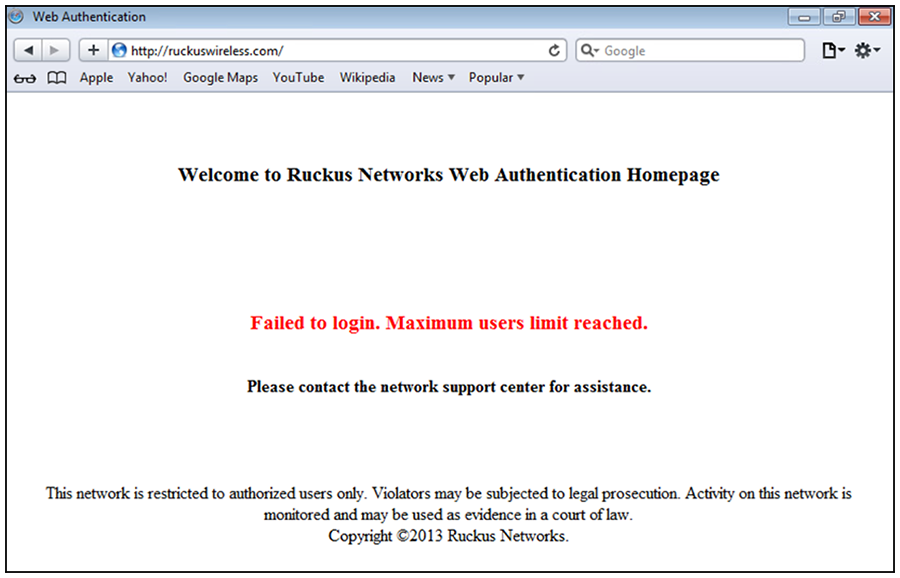
If the limit for the number of authenticated users on the network is exceeded, the following maximum host limit page is displayed.
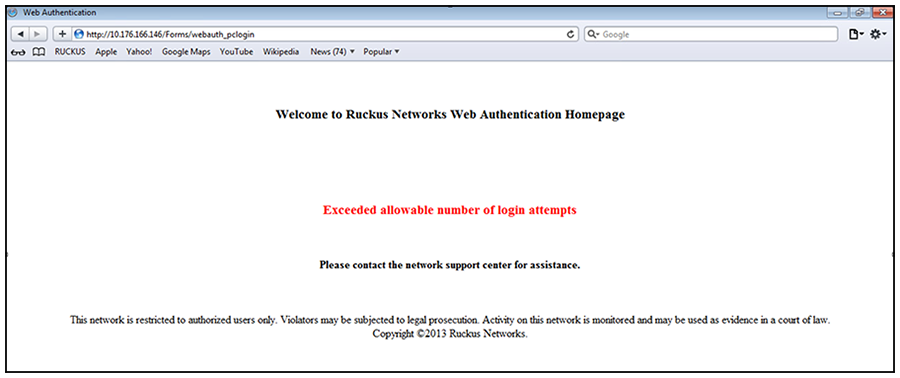
If the number of Web Authentication attempts by a user has been exceeded, the maximum
attempts limit page is displayed. The user is blocked from attempting Web Authentication
until either the user MAC address is removed from the blocked list (using the
clear webauth block-mac
command) or the block duration timer expires.
If Web Authentication is successful, the following success page is displayed.
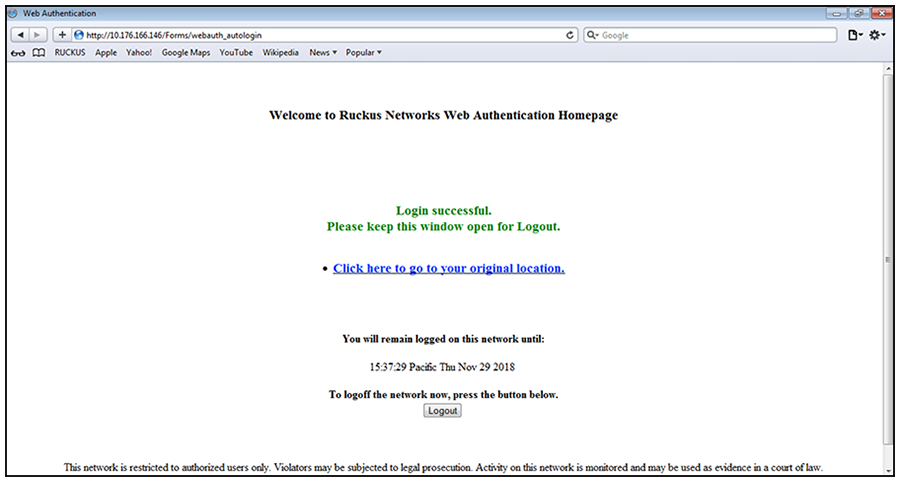
When the authentication mode is set to "username-password," and Web Authentication is successful with a redirect URL attribute from the RADIUS server, a hyperlink labeled "Click here for home screen" will be available. Selecting this link will open the home screen in a new tab.
When the authentication mode is set to "captive-portal," and Web Authentication is successful with a redirect URL attribute from the RADIUS server, the browser will automatically open the redirect URL.
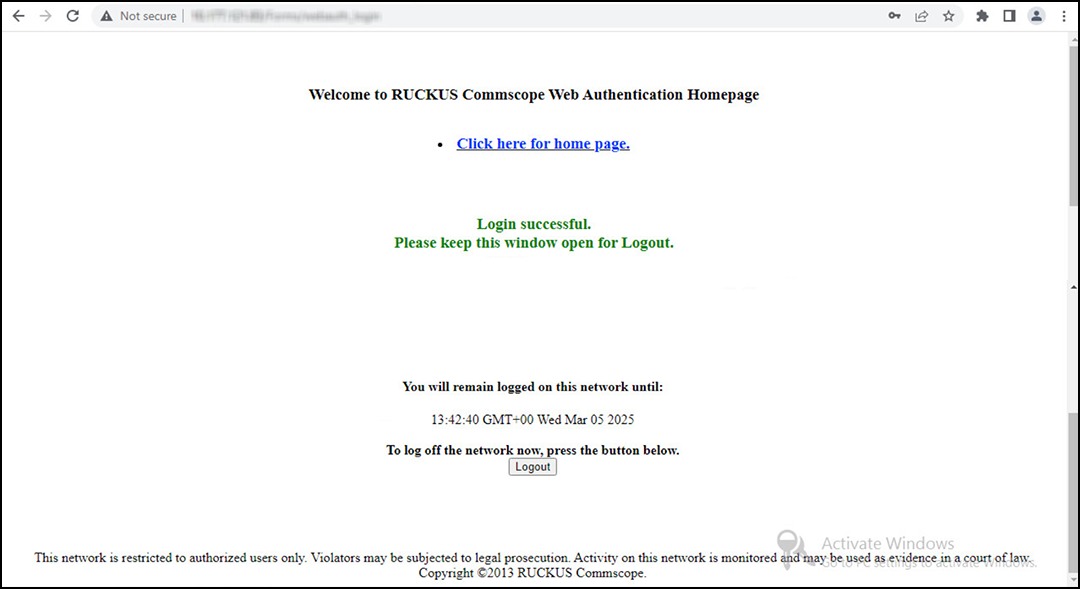
Once a host is authenticated, that host can manually de-authenticate by clicking the Logout button on the login success page. The host remains logged in until the re-authentication period expires. At that time, the host is automatically logged out. However, if a re-authentication period is not configured, the host remains logged in indefinitely.
You can log out of the host session by clicking the Logout button. Once the host is logged out, the following logout message page is displayed.
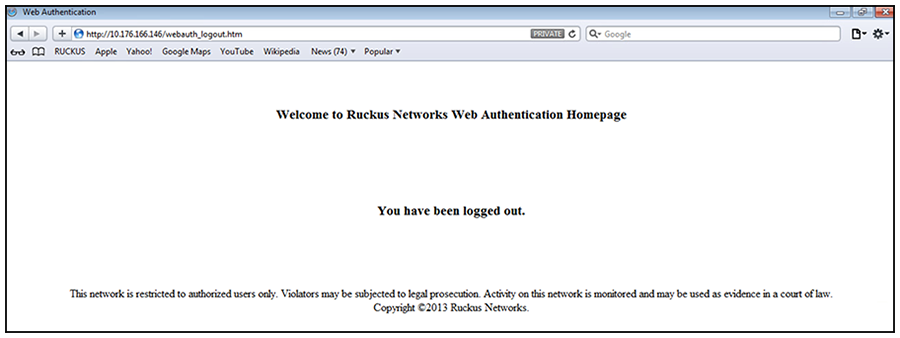
You can customize the top and bottom text for the welcome page and all pages shown in the previous figures.