Adding Tenant Accounts
Adding a Tenant Account From the Root Account
A root account administrator adds tenant accounts from the root account Accounts tab.
From the multi-tenant root account Accounts page, click the Add Account button.
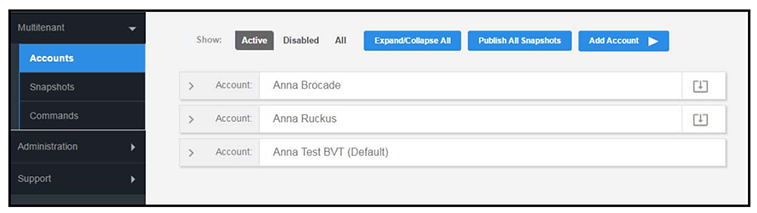
Create Tenant Account
Enter tenant account information:
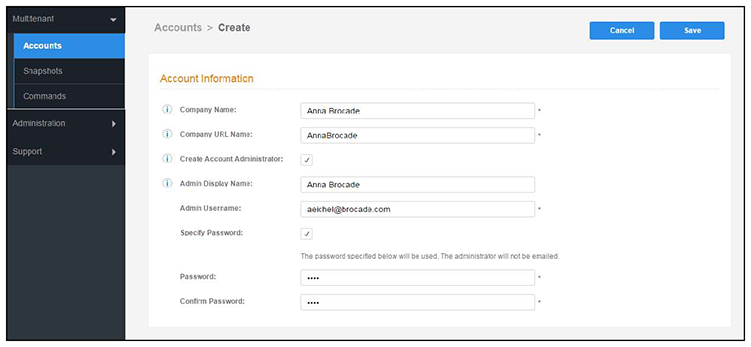
Tenant Account Admin Password
Different methods for creating tenant administrator accounts:
Create an admin account without specifying a password. A system generated password is emailed to the admin.
Create an admin account with a defined password. The system does not send an email notification for defined passwords.
Create no account admin. The account is created without an admin. The only way to access the account is by changing into the tenant account from the root account. For details, see the “Changing Into a Tenant Account From the Root Account” section of the Navigating the Root Account topic.
Setting Up the Tenant Account
After the tenant administrator account has been created, use the tenant administrator credentials from the new administrator account email to access and log in for the initial system setup.
Use the temporary password from the administrator email.
Example email with login credentials:
You have been added as an administrator.

URL: https://test245.cloudpath.net/admin/
Username: test_user@cloudpath.net
Temporary Password: Uw6hYcE9vS
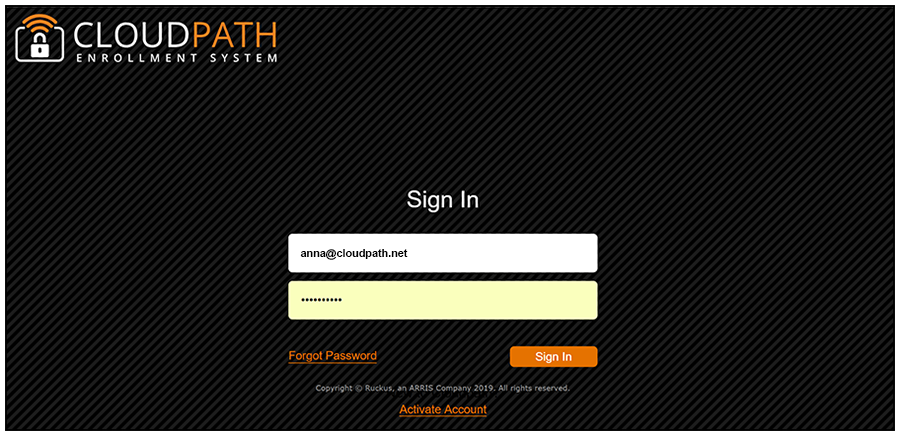
Account Admin Setup Credentials
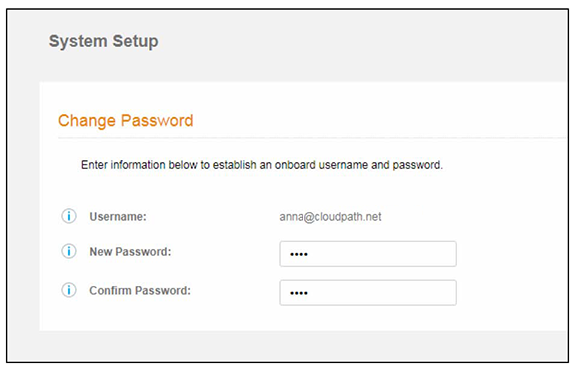
Tenant Account Setup Wizard
After the first login to a tenant account (by logging in, or by changing into the account), the system setup wizard guides you through a few basic steps.
Enter Company Information. This information is embedded in the onboard root CA certificate.
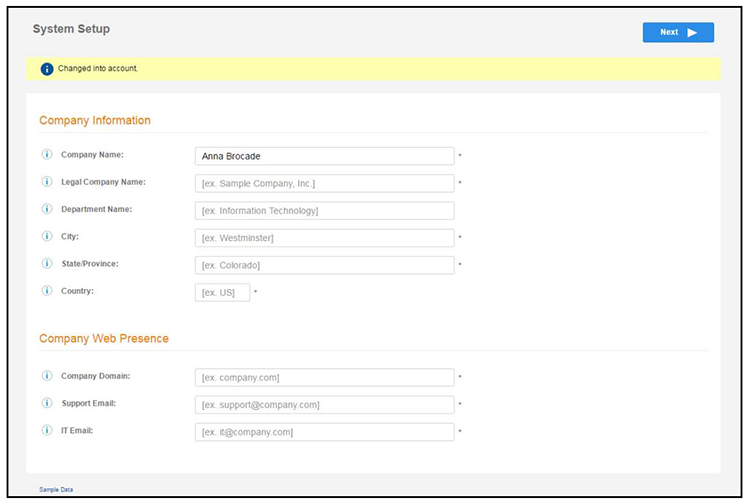
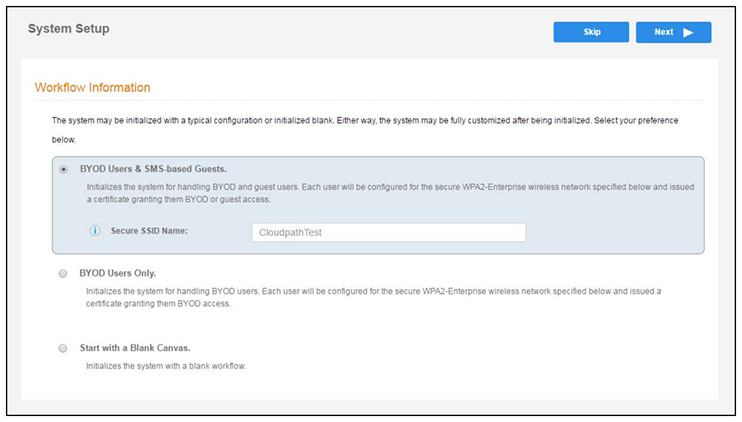
To initialize the system with a sample configuration, select BYOD Users & SMS Guests, or BYOD Users Only. This creates an initial workflow for BYOD users and sponsored guests (or BYOD users only) that you can use as a template, or simply add a device configuration and use immediately.
To create your own workflow, select Start with Blank Canvas.
If you plan to use an authentication server to authenticate end-users or sponsors, we recommend populating the authentication server information page.
If using multiple authentication servers, additional authentication servers may be added through the workflow or from the page.
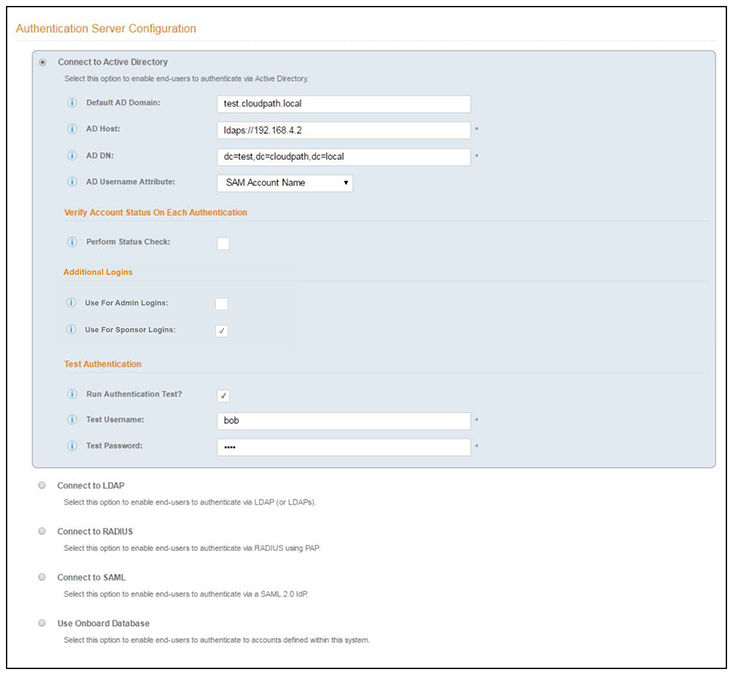
To setup the initial configuration of the authentication server, select and enter the required fields.
Consider these optional settings for the authentication server:
Verify Account Status on Each Authentication—If selected, Active Directory is queried during subsequent uses of the certificate to verify the user account is still enabled. You must provide the bind username and password for an authentication server administrator account.
- Additional Logins
- Authentication Server definitions of types Connect to Active
Directory and Connect
to LDAP offer additional options.
If Use for Admin Logins is selected, administrators can log into the Cloudpath Admin UI using credentials associated with this authentication server. Additionally, three related options become available to define which authentication server defined user groups are allowed as Cloudpath administrators. They are:
Group Regex options are used to map Authentication Server defined groups to Cloudpath administrator Roles. User groups returned by the authentication server must match at least one of the Group Regex fields for the Admin login to be allowed.Note: Similar to the AD and LDAP servers, SAML authentication server definitions can now be used to authenticate administrators of Cloudpath through the Use For Admin Logins option.Important Information for SAML Administrator UI Configuration
- After configuring a SAML authentication server definition on Cloudpath, the SP Metadata that is required for configuring the SAML IdP side is available. The authentication servers are listed in , and you can get the SP Metadata of the SAML definitions by clicking the download icon on the right side of the listing header.
- For SAML authentication server definitions, it is important that the Username and Distinguished Name attributes are correctly mapped in the SAML Attribute to Enrollment Mappings section. The Username will map to Cloudpath administrator Username on first login. Distinguished Name is used to lookup existing reference to externally authenticate the Cloudpath administrator account if one exists. Otherwise, a new externally authenticated account is created.
- Only one SAML type authentication server definition can have the Use For Admin Logins option enabled.
- Similar to other authentication server definitions, the Group Attribute provided by the SAML IdP assertion can be used to determine which external user accounts are allowed to access Cloudpath.
Important Information for SAML Administrator UI Log In
- After the SAML authentication server is configured by enabling the Use For Admin Logins option, the Cloudpath login page displays a new button Sign in via SSO. Clicking the button initiates the SAML IdP login flow. If the IdP login is successful and if the IdP provided Group Attribute matches at least one configured Group Regex, then the administrator is allowed to login.
- In cloud or hosted Cloudpath versions, for a Cloudpath administrator to authenticate through an externally authenticated account such as SAML, a specific administrator login page URL is needed. The URL for the administrator login page is displayed when expanding the SAML authentication server definition listing of authentication servers in .
While authenticating the admin user, if multiple regexes match, the role with the highest privilege takes precedence. If none of the three regexes match, authentication is denied to the user.
If Use for Sponsor Logins is selected, sponsors can log into the Cloudpath Sponsorship Portal using credentials associated with this authentication server.
- To authenticate as an administrator to an external authentication server, each tenant account must go to an admin login page specific to their account. This URL is of the form: https://<cloudpath-host>/admin/login/<AccountUrlName>/
- The URL Name for an account can be found or edited under Administrators > Company Information. For example, if an account's URL Name is "TenantAccount1", the account-specific login URL is found at: https://<cloudpath-host>/admin/login/TenantAccount1/
- The standard login page at /admin/ is still available, and accepts logins from any admin account that is being tracked by Cloudpath.
Test Authentication—If selected, an authentication will be attempted using the username and password provided to test connectivity to the authentication server. This test can also be run from the workflow.
Authentication Server Certificate
=GUID-B1F21455-2C19-41D3-8686-044350EB22D7=1=en-US=Low.png)
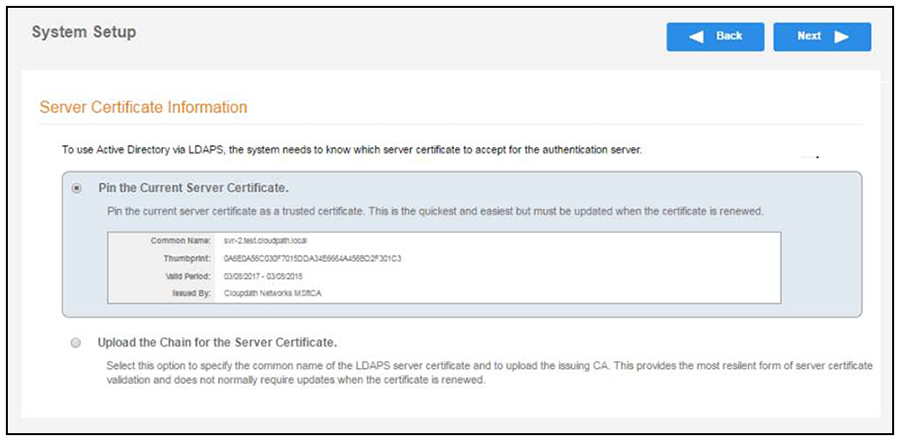
Select Upload the Chain for the Server Certificate to upload a certificate chain from an issuing CA. You must specify the common name for the LDAPS server certificate. This certificate does not need to be updated when the certificate is renewed.
Select Pin the Current Server Certificate to use the current server certificate as the trusted certificate. This setting must be updated if the certificate is renewed.
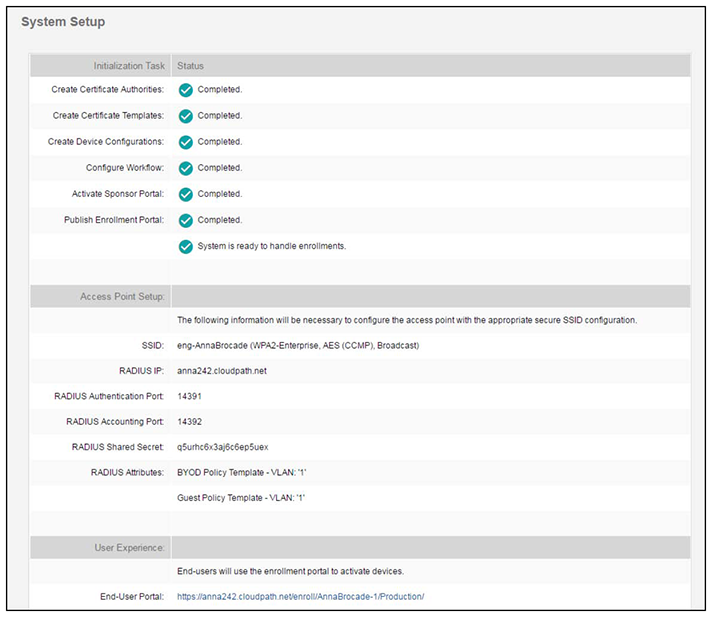
After the initial setup tasks, the system finishes the initialization process. When the publishing tasks are complete, the system is ready to use. The setup information is also emailed to the system administrator for this account.