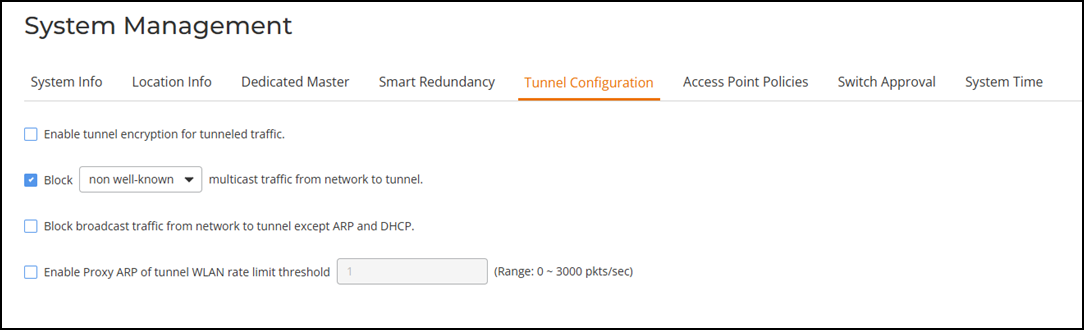
Tunnel Configuration
Only WLANs that are enabled with Tunnel
mode are affected.
Refer to Configuring Advanced Wi-Fi Options in the WLAN configuration section for information on enabling Tunnel mode.
Complete the following steps to configure data encryption and filtering for tunneled WLANs.
- From the main menu, select
.The System Management page is displayed.
- Select the checkboxes next to
the options you want to enable.
- Enable tunnel encryption for tunneled traffic: By default, when WLAN traffic is tunneled to Dedicated Master, only the control traffic is encrypted while data traffic is unencrypted. When this option is enabled, the Access Point will decrypt 802.11 packets and use an AES-encrypted tunnel to send them to Dedicated Master.
- Block multicast traffic from network to tunnel: Prevents [all/non-well-known] multicast traffic from propagating on the tunnel.
- Block broadcast traffic from network to tunnel except ARP and DHCP: Prevents all broadcast traffic other than Address Resolution Protocol and DHCP packets.
- Enable Proxy ARP of tunnel WLAN with rate limit threshold: Reduces tunnels. When Dedicated Master receives a broadcast ARP request for a known host, it acts on behalf of the known host to send out unicast ARP replies at the rate limit it will forward it to the tunnel to all APs according to the rate limit threshold set in the Packet Inspection Filter program (like Wireshark).
- Click Apply in the same section to save your changes.