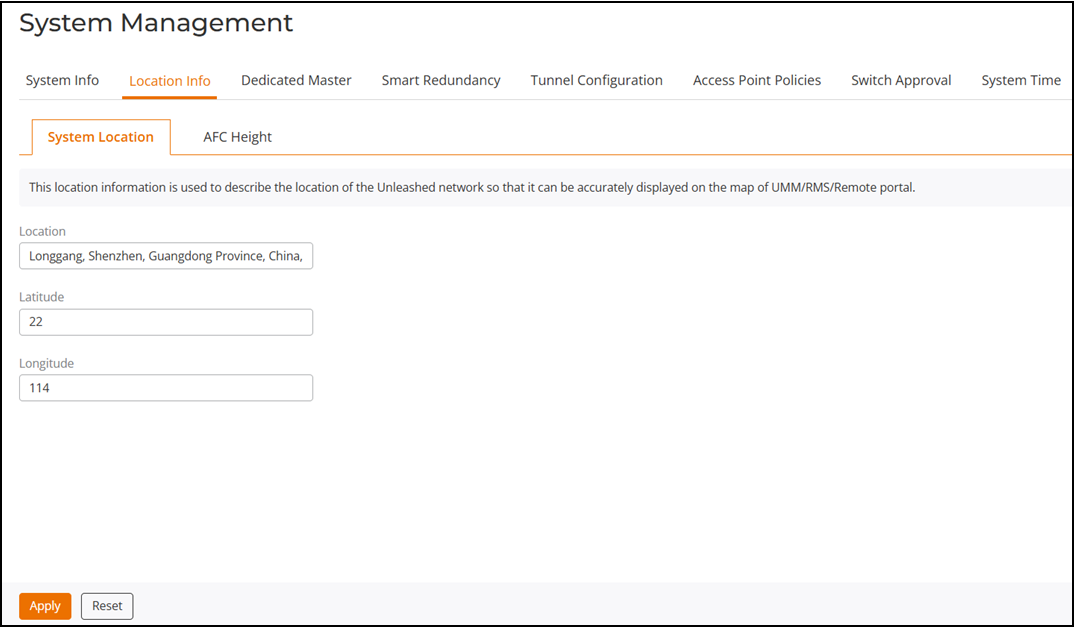
Setting the System Location and GPS Information
The Location
Info page displays the geographical location information of an Unleashed
network, as well as the GPS settings, so that it can be accurately displayed on the
map
available on the Remote Management Services (RMS) or Unleashed Remote portal.
- From the main menu, select
.The System Location sub-tab is displayed by default.
- For Location, enter the geographical location of the Unleashed network. If you do not set the location, this value is taken from the Unleashed master AP. If the Master AP does not provide valid location information, the value is obtained from the first member AP that has valid information.
- For the Latitude and Longitude fields, enter the GPS coordinates. If you do not set the GPS coordinates, this value is taken from the Unleashed Master AP. If the Master AP does not provide valid GPS information, the value is obtained from the first member AP that has valid information.
- Click Apply to save the changes.