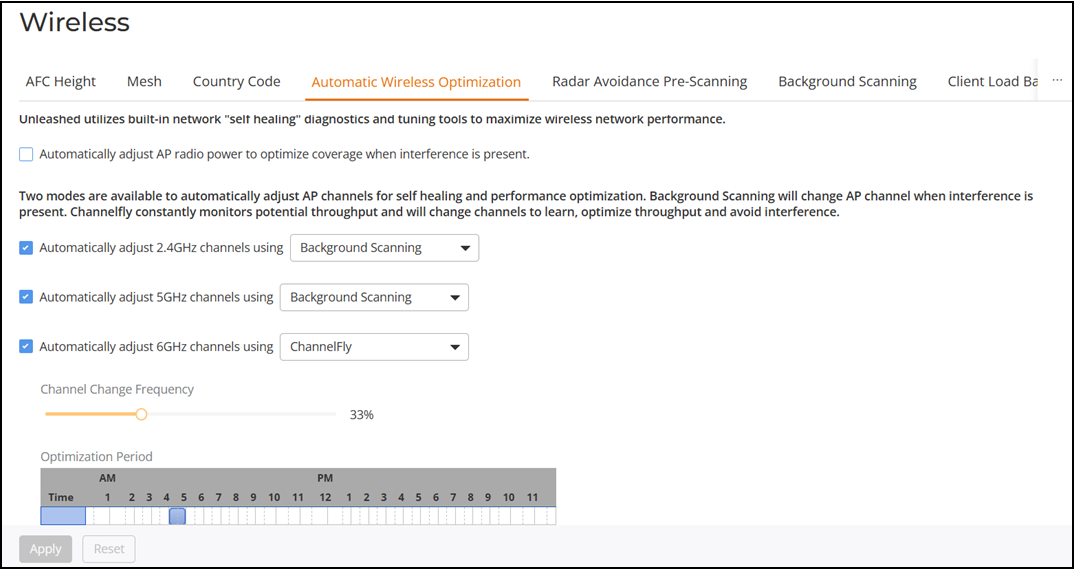
Automatic Wireless Optimization
From the RUCKUS Unleashed main menu, select to utilize built-in network diagnostics and tuning tools.
Automatically Adjusting AP Radio Power
You can automatically adjust AP radio power by selecting the Automatically Adjusting AP Radio Power to optimize coverage when interference is present checkbox to optimize coverage when interference is present. Automatically adjusting AP radio power is designed to turn down the power of an AP if the following conditions are met:
- The power is set to Auto in the AP configuration.
- The AP can hear another AP that is on the same channel and same network.
- The AP can hear the other AP at a minimum of 50 dB, which means the APs are very close to each other.
Note that the 2.4 GHz, 5 GHz, and 6 GHz radio bands are considered independently. If all conditions are met, the AP will reduce its power by half. The other AP may or may not reduce its power simultaneously.
Automatically Adjusting 2.4 GHz and 5 GHz Radio Channels Using Background Scanning
Using background scanning, the Master AP regularly samples the activity in all APs to assess radio frequency (RF) usage, to detect rogue APs and to determine the optimal channel for automatic channel selection.
These scans sample one channel at a time in each AP so as not to interfere with network use. You can, if you prefer, customize the automatic scanning of RF activity, deactivate it if you feel it is not helpful, or adjust the frequency if you want scans at greater or fewer intervals (refer to Background Scanning).
Automatically Adjusting 2.4 GHz, 5 GHz, and 6 GHz Radio Channels Using ChannelFly
The main difference between ChannelFly and background scanning is that ChannelFly determines the optimal channel based on real-time statistical analysis of actual throughput measurements, while background scanning uses channel measurement and other techniques to estimate the impact of interference on Wi-Fi capacity based on progressive scans of all available channels.
The following options are displayed only if you select ChannelFly:
Benefits of ChannelFly
With ChannelFly, the AP intelligently samples different channels while using them for service. ChannelFly assesses channel capacity every 15 seconds and changes channel when, based on historical data, a different channel is likely to offer higher capacity than the current channel. Each AP makes channel decisions based on this historical data and maintains an internal log of channel performance individually.
When ChannelFly changes the channels, it utilizes 802.11h channel change announcements to seamlessly change channels with no packet loss and minimal impact to performance. The 802.11h channel change announcements affect both wireless clients and RUCKUS mesh nodes in the 2.4 GHz and 5 GHz bands.
Initially (in the first 30 to 60 minutes) there will be more frequent channel changes while ChannelFly learns the environment. However, once an AP has learned about the environment and which channels are most likely to offer the best throughput potential, channel changes will occur less frequently unless a large measured drop in throughput occurs.
ChannelFly can react to large measured drops in throughput capacity in as little as 15 seconds, while smaller drops in capacity may take longer to react to.
Disadvantages of ChannelFly
Compared to background scanning, ChannelFly takes considerably longer for the network to settle down. If you will be adding and removing APs to your network frequently, background scanning may be preferable. Additionally, if you have clients that do not support the 802.11h standard, ChannelFly may cause significant connectivity issues during the initial capacity assessment stage.
You can enable or disable ChannelFly per band. If you have 2.4 GHz clients that do not support 802.11h, RUCKUS recommends disabling ChannelFly for 2.4 GHz, but leaving it enabled for the 5 GHz or 6 GHz bands.