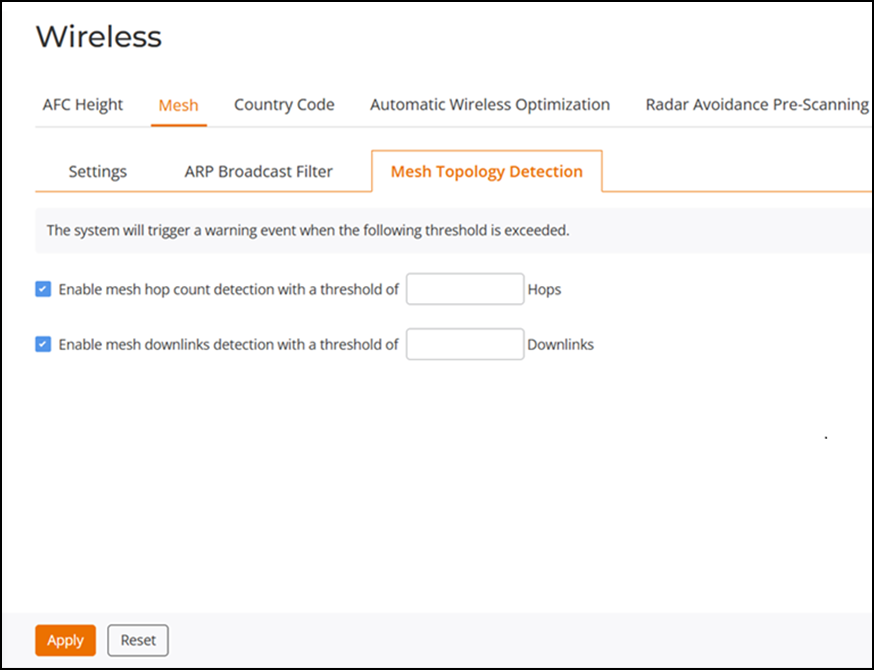
Configuring Mesh Topology Detection
The Mesh Topology Detection allows you to set the number of mesh hops and mesh downlinks after which RUCKUS Unleashed will trigger a warning message.
For example, if you enable both options with a threshold value of 3 for each (default), RUCKUS Unleashed will trigger a warning event message when either of the following events occurs:
- A Mesh AP with 4 or more hops from a Root AP is detected.
- A Root AP with 4 or more downlink Mesh APs connected to it is detected.
Complete the following steps to configure Mesh Topology Detection.
-
UI path for UnleashedFrom the main menu, select .
- Select the Mesh Topology Detection tab.
- Select the Enable mesh hop count detection with a threshold of checkbox, and enter the number of hops.
- Select the Enable mesh downlinks detection with a threshold of checkbox, and enter the number of downlinks.
- Click Apply.