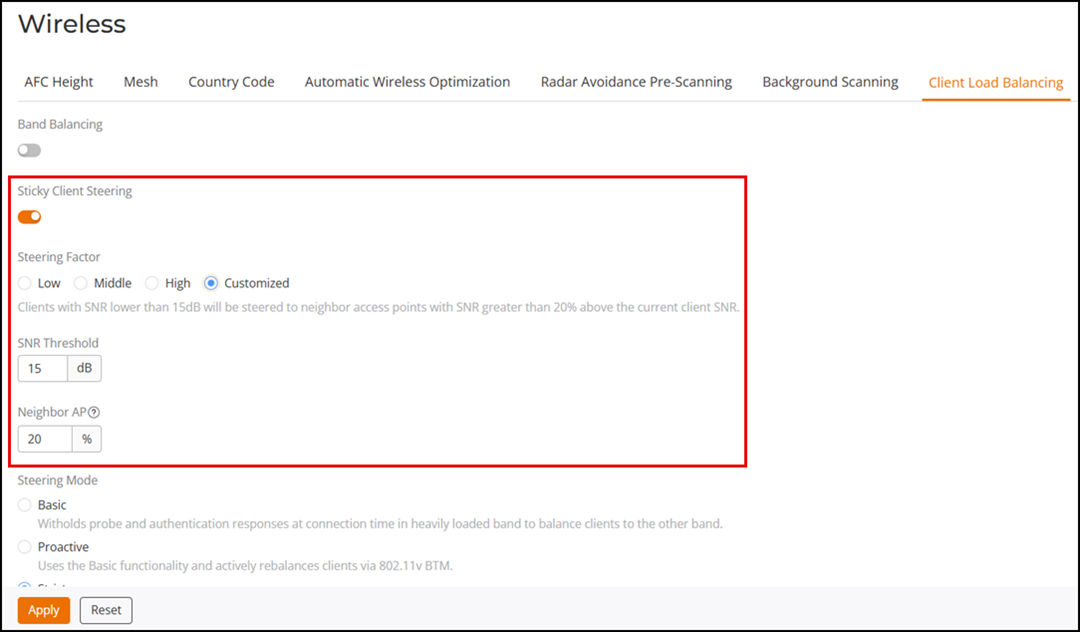
Enabling Sticky Client Steering Globally
Sticky Client Steering improves Wi-Fi
performance by redirecting clients with a poor Signal-to-Noise Ratio (SNR) to more
optimal
APs (based on the SNR threshold that you configure).
- From the main menu, select .
- Toggle the Sticky Client Steering switch to enable the feature.
- Select a Steering
Factor option. Choose one of the following:
- Low: Clients with a Signal-to-Noise Ratio (SNR) lower than 15 dB are steered to the neighbor access points with an SNR greater than 20% above the current client SNR.
- Middle: Clients with an SNR lower than 20 dB are steered to the neighbor access points with an SNR greater than 25% above the current client SNR.
- High: Clients with an SNR lower than 25 dB are steered to the neighbor access points with an SNR greater than 10% above the current client SNR.
- Customized: Clients meeting your custom thresholds will be
redirected. Configure the following settings:
- SNR Threshold (dB): The SNR threshold is a value that determines the minimum acceptable SNR for a client device to maintain a connection with an AP. Enter a threshold value ranging from 5 through 30. The default value is 15.
- Neighbor AP (%): The Neighbor AP threshold is a value that represents the minimum acceptable percentage of signal strength from neighboring APs compared to the current AP. Enter a threshold value ranging from 10 through 40. The default value is 20.
- Click Apply.