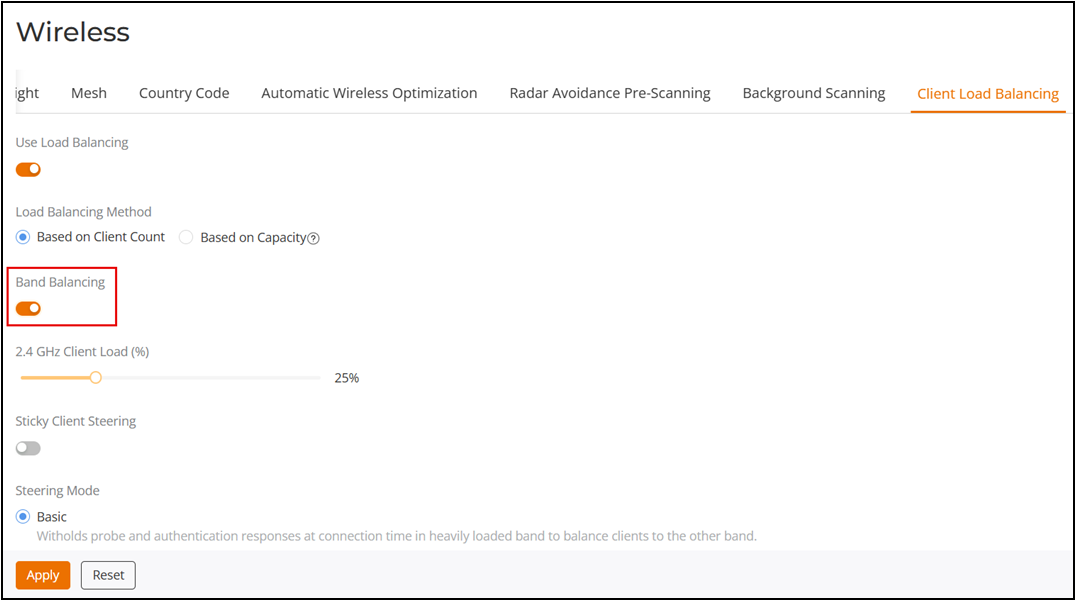
Enabling Band Balancing Globally
Band balancing attempts to balance the
client load on radios by distributing clients between the 2.4 GHz, 5 GHz, and 6
GHz
radios.
Band balancing is disabled by default. To balance the number of clients connecting to the radios on an AP, the AP encourages dual-band and tri-band clients to connect to the 5 GHz band (and 6 GHz band, if available) when the configured percentage threshold is reached.
Complete the following steps to enable and configure band balancing globally.
-
UI label difference for UnleashedFrom the main menu, select .
- Toggle the Band Balancing switch to on.
- For 2.4 GHz Client load (%), drag the slider along the bar to your desired value, which denotes the threshold above which dual-band and tri-band clients will be encouraged to connect to the 5 GHz or 6 GHz radios rather than the 2.4 GHz radio.
- Click Apply.
Note: When enabled globally, Band Balancing is
applied to all WLANs by default. To disable Band Balancing for a specific WLAN,
edit the
Radio Control Settings for the WLAN using the WLAN Advanced Options. Refer to Disabling Load and Band Balancing for a
WLAN.