Background Scanning
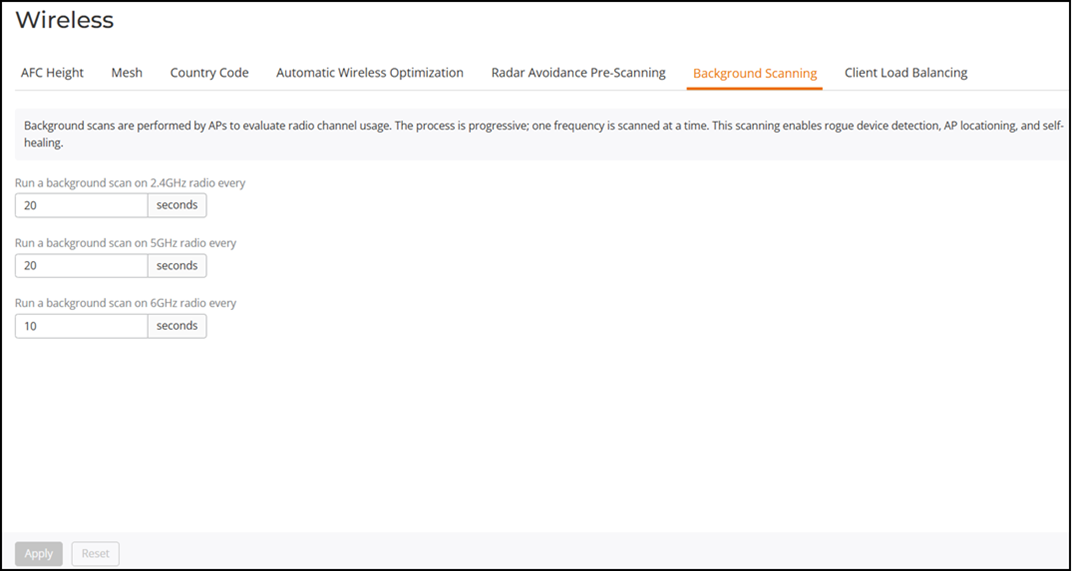
Scanning intervals can be configured on the 2.4 GHz, 5 GHz, and 6 GHz radios independently and then click Apply.
- Run a background scan on the 2.4 GHz radio every: Enter the time interval (1~65535 seconds, default is 300) that you want to set between each scan.
- Run a background scan on the 5 GHz radio every: Enter the time interval (1~65535 seconds, default is 300) that you want to set between each scan.
- Run a background scan on the 6 GHz radio every: Enter the time interval (1~65535 seconds, default is 300) that you want to set between each scan.
Note: For Unleashed 200.18 and later versions, when
the Sticky Client Steering setting is enabled, Background Scanning is enabled
by
default at 20, 20, 10 intervals for the 2.4, 5, and 6 GHz radios,
respectively.
Note: You can also disable Background Scanning on a
per-WLAN basis from the page. Select a WLAN, click Edit, select the
Advanced
Options page, select the Radio Control tab,
and toggle the Background
Scanning option to off.