Uploading a Dynamic PSK Profile
Use the following procedure to batch
generate multiple DPSKs using a CSV file that can be edited using a spreadsheet
application
(such as Microsoft Excel).
Creating a DPSK batch generation profile is useful if you want to customize the user names that are used for accessing the DPSK WLAN, as opposed to user names such as "BatchDPSK_User_1".
- Go to .
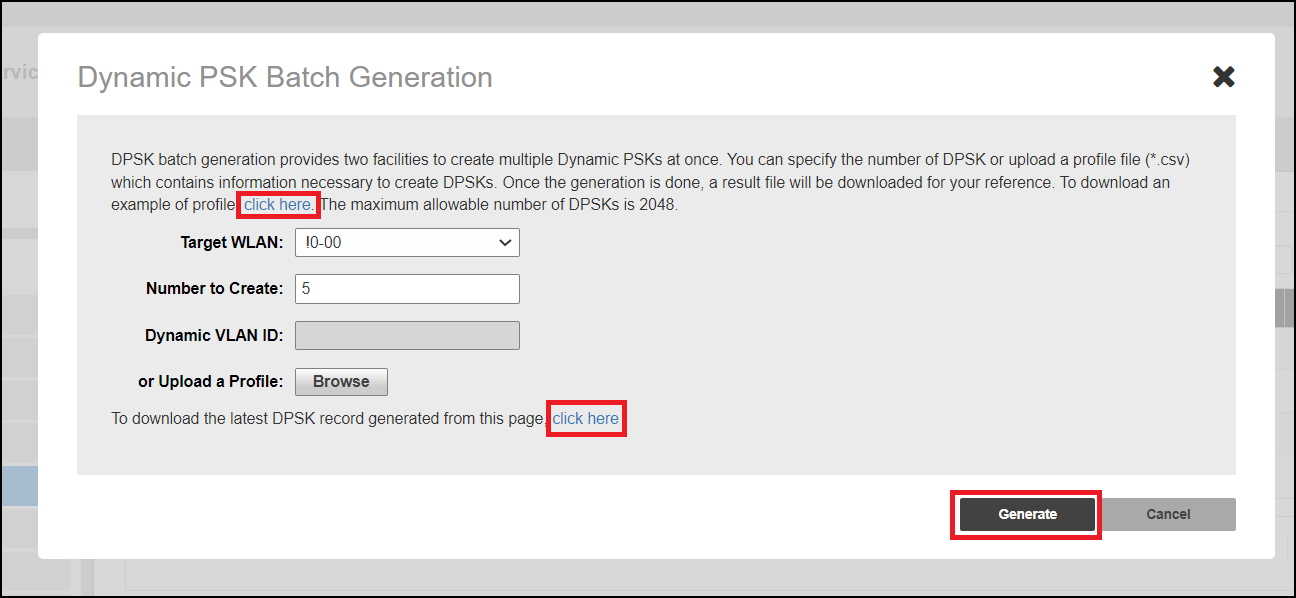
- Click Generate.
- Click the click here link to download a sample profile.
- Save the sample batch DPSK profile (in CSV format) to your computer.
- Using a spreadsheet application, open the CSV file and edit the batch dynamic PSK
profile by filling out the following columns:
- User Name: (Required) Enter the name of the user (one name per row). The length of the user name must be from 1 through 128 characters.
- MAC Address: (Optional) If you know the MAC address of the device that the user will be using, enter it here.
- VLAN ID: (Optional) Enter a valid VLAN ID.
- Passphrase:
The administrator can set the DPSK characters on their own. The DPSK length
must be 8 through 62 characters. For DPSK rules, refer to DPSK Rules. If the
Passphrase field is left empty, the system automatically
generates DPSKs.
Note: The administrator is not allowed to set DPSKs using the batch method.
- In the Dynamic PSK Batch Generation dialog box, click the Browse button to upload the CSV file you edited.
- Click Generate to generate the custom DPSKs that you modified.