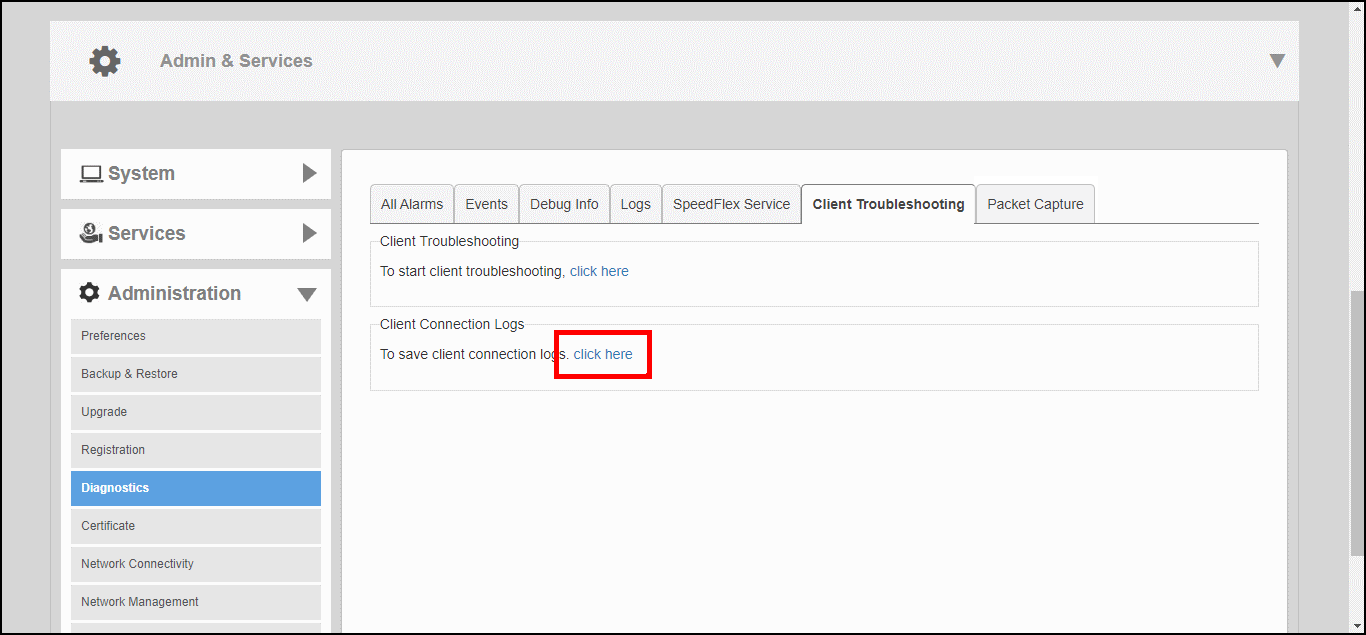
Saving Client Connection Logs
Saving client connection logs may be helpful in troubleshooting client connectivity
issues.
RUCKUS Unleashed provides two options for saving client connection logs - download the current log file immediately from the web interface, or configure RUCKUS Unleashed to send the logs to a syslog server automatically. For information on delivering logs to syslog, see Customizing the Current Log Settings.
To download and save current client connection logs: