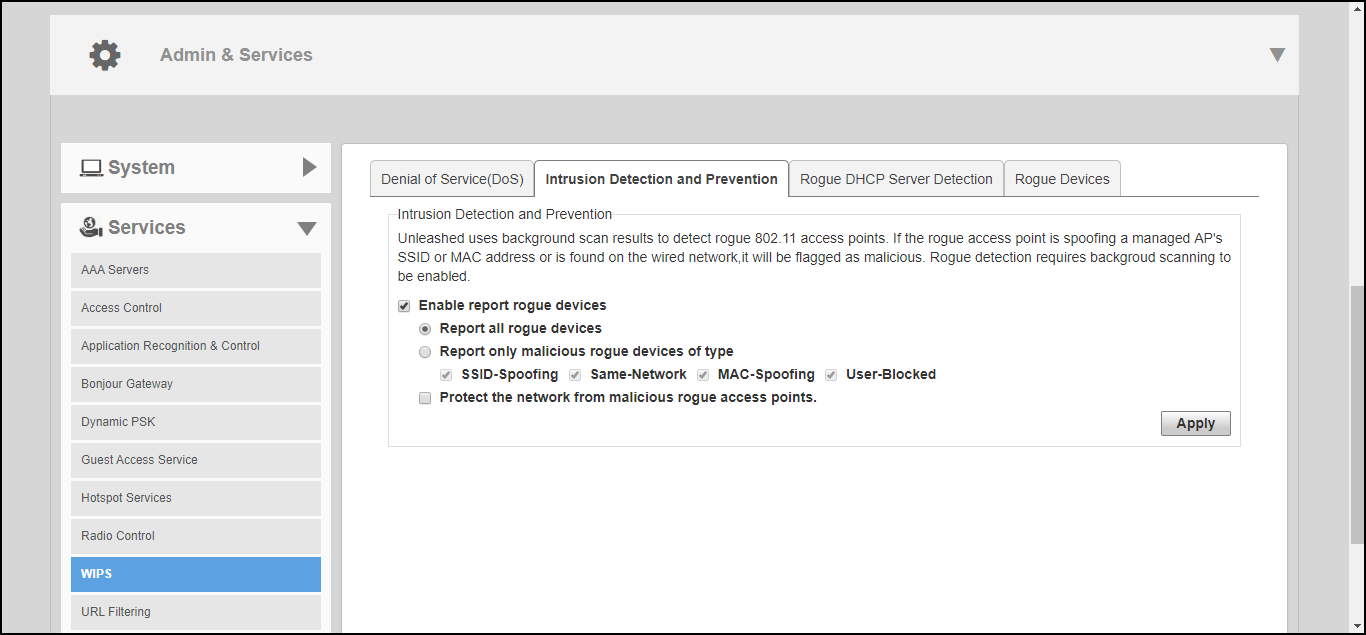
Rogue AP Detection
Complete the following steps to enable or disable and configure rogue access point detection.
- From the dashboard, select Admin & Services > Services > WIPS > Intrusion Detection and Prevention.
- Select the Enable report rogue devices check box to include rogue device detection in logs and email alarm event notifications.
- Select which devices to include in rogue device reports:
- Report all rogue devices: Send alerts for all rogue AP events.
- Report only malicious
rogue devices of type: Select which event types to report:
- SSID-Spoofing: A malicious rogue AP that uses the same SSID as a RUCKUS Unleashed AP, also known as an "evil-twin" AP.
- Same-Network: A malicious rogue AP that is connected to the same wired network.
- MAC-Spoofing: A malicious rogue AP that has the same BSSID (MAC address) as one of the virtual APs managed by RUCKUS Unleashed.
- User-Blocked: A rogue AP that has been marked as malicious by the user.
- Select the Protect the network from malicious rogue access points check box to automatically protect your network from network-connected rogue APs, WLAN-spoofing APs, and MAC-spoofing APs. When one of these rogue APs is detected (and this check box is enabled), the RUCKUS AP automatically begins sending broadcast de-authentication messages spoofing the rogue's BWLAN (MAC address) to prevent wireless clients from connecting to the malicious rogue AP. This option is disabled by default.
- Click Apply to save your changes.