Configuring Global Access Point Policies
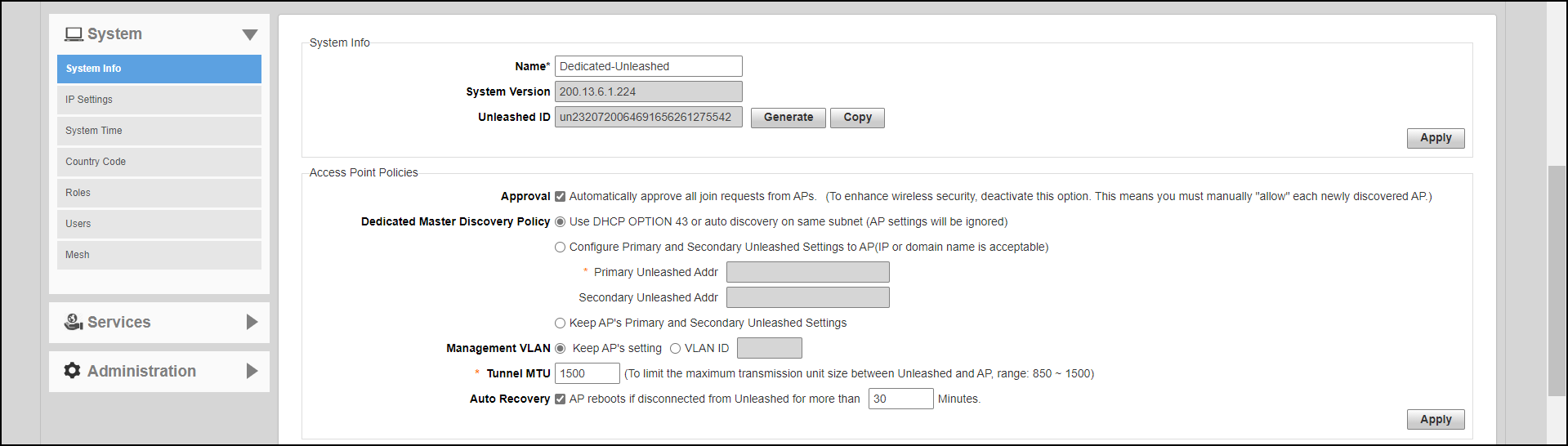
The Access Point Policies settings allow you to define how new APs are detected and approved for use in WLAN coverage, as well as policies on Dedicated Master discovery and communicating with the Dedicated Master.
Complete the following steps to review and revise the general AP policies.
- Go to .
- Review the current settings
under Access Point Policies. You can change the
following settings:
- Approval: This option is enabled by default, which means that all join requests from any RUCKUS AP will be approved automatically. If you want to manually review and approve the joining of new APs to the WLAN, clear the Approval check box.
- Dedicated Master
Discovery Policy: If you have multiple Dedicated Masters on
the network and want specific APs to join a specific Dedicated Master, you
can limit Dedicated Master discovery. Ensure that Dedicated Master setup is
completed.
Select one of the following options:
- Use DHCP OPTION
43 or auto discovery on same subnet (AP settings will be
ignored): Add the Option 43 setting under DHCP
server in the Linux DHCP
server.
#Ruckus Option 43 configuration as below:
option space ruckus_info;
option ruckus_info.zdiplist code 3 = text;
vendor-option-space ruckus_info;
option ruckus_info.zdiplist "10.223.26.121";
- Configure Primary and Secondary Unleashed Settings to AP: Enter the IP addresses (or FQDNs) of the primary and secondary Dedicated Master units to which you want APs to join. APs will first attempt to join the primary Dedicated Master. If they cannot find or are unable to join the primary Dedicated Master, they will attempt to join the secondary Dedicated Master. If still unsuccessful, APs will stop attempting for a brief period of time, and then they will restart the joining process. They will repeat this process until they successfully join either the primary or secondary Dedicated Master.
Note: If you have two Dedicated Masters, RUCKUS recommends using Smart Redundancy. For information on Smart Redundancy configuration, refer to Smart Redundancy Configuration. - Use DHCP OPTION
43 or auto discovery on same subnet (AP settings will be
ignored): Add the Option 43 setting under DHCP
server in the Linux DHCP
server.
- Management
VLAN: You can enable the Dedicated Master management VLAN if
you want to separate management traffic from regular network traffic. The
following options are available:
- Keep AP's setting: Select this option if you want to preserve the Management VLAN settings as configured on the AP. Note that the Management VLAN on the AP is disabled by default.
- VLAN ID: Select this option and enter a valid VLAN ID to segment management traffic into the specified VLAN. Valid VLAN IDs are from 1 through 4094.
- Tunnel MTU: Use this field to set the Maximum Transmission Unit for tunnel packets between a Dedicated Master and the APs. The MTU is the size of the largest protocol data unit (in bytes) that can be passed. Supported MTU values range from 850 through 1500 (the default is 1500).
- Auto Recovery: Set an AP auto-recovery time in minutes, after which APs will reboot in attempt to reconnect to Dedicated Master. Default is 30 minutes.
- Click Apply to save and apply your settings.