Background Scanning
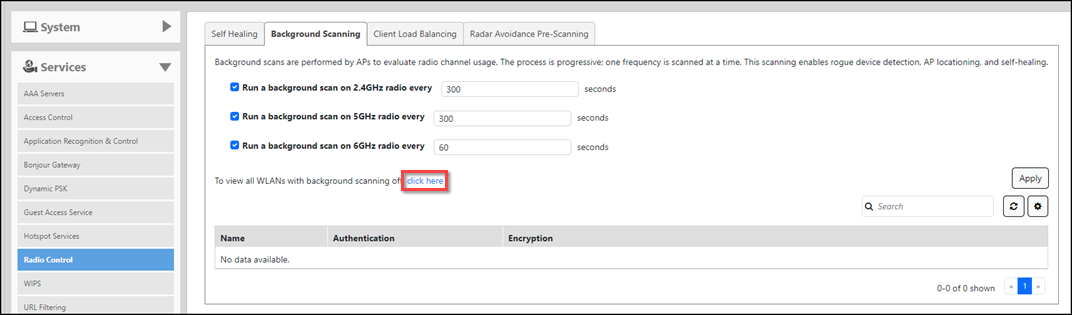
Scanning intervals can be configured on the 2.4 GHz, 5 GHz, and 6 GHz radios independently.
- Run a background scan on the 2.4 GHz radio every [ ]: Select this check box and enter the time interval (1~65535 seconds, default is 300) that you want to set between each scan.
- Run a background scan on the 5 GHz radio every [ ]: Select this check box and enter the time interval (1~65535 seconds, default is 300) that you want to set between each scan.
- Run a background scan on the 6 GHz radio every [ ]: Select this check box and enter the time interval (1~65535 seconds, default is 300) that you want to set between each scan.
Note: If you want to disable Background Scanning, clear the check box; this should result
in a minor increase in AP performance, but removes the detection of rogue APs. You
can also decrease the scan frequency, as less frequent scanning improves overall AP
performance.
Note: You can also disable Background Scanning on a per-WLAN basis from the
Dashboard > Wi-Fi Networks screen. To disable scanning for a particular WLAN, click the
Edit link next to the WLAN for which you want to disable scanning, open
Advanced Options, select the
Radio Control tab, and click the check box next to
Disable Background Scanning.
To see whether Background Scanning is enabled or disabled for a particular WLAN, click the click here link at the bottom of the page.