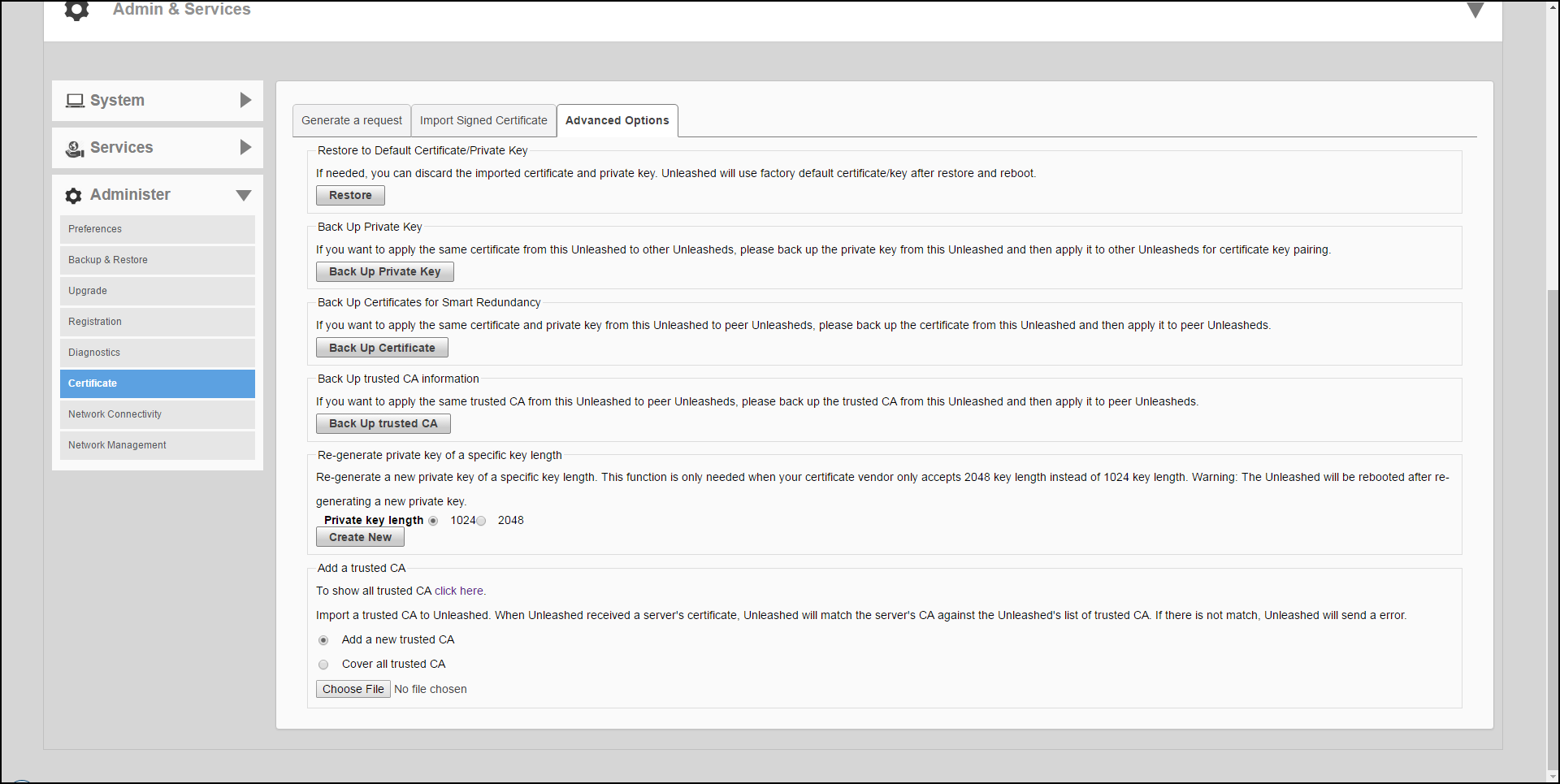
SSL Certificate Advanced Options
The
Advanced Options section allows you to perform additional certificate management functions.
- Restore to Default Certificate/Private Key: This deletes any certificate and private key that has been imported, and restores
the factory default certificate/private key after restore and reboot.
Note: Restoring Unleashed to factory default state does not remove imported SSL certificates. Use this option to remove any imported certificates and revert to the factory default state.
- Back Up Private Key: Back up the current private key by downloading it for disaster recovery or for use on another Unleashed AP. If your Unleashed AP is replaced due to an RMA, you will need to restore the private key if you have installed a public certificate. Ensure that the private key is kept secure because the security of your SSL communications depends on it.
- Back up certificates for Smart Redundancy: If you have more than one Unleashed AP , you can install the same SSL certificate/private key pair on both devices. In this way, you can access the shared virtual management interface advertised in DNS for the same FQDN without seeing the security warning.
- Back Up Trusted CA Information: Use this option to apply the same trusted CA from this Unleashed AP to peer Unleashed APs. The file is output as a .tar.gz file containing all trusted Certificate Authoritiy information currently installed on this Unleashed AP. This compressed file must be decompressed and the files imported into the peer Unleashed AP using the Add a Trusted CA feature described below.
- Re-Generate Private Key of a Specific Key Length: Use this option if your previous private key has been compromised or you need to use a stronger key (either 1024 or 2048 bits). Note that a new certificate must be generated and installed afterwards.
- Add a Trusted CA: Use this option to import CA information. Click the Click Here link to display all of the current trusted CA information, with each trusted CA separated by a string of number symbols (“#######”). Options include:
- Add a new trusted CA: Import a single CA file.
- Cover all trusted CA: Use the new trusted CA file to cover all existing trusted CA files