Onboarding Mesh APs with Zero Touch Mesh
- Go to Admin & Services > System > Mesh.
- Select the check box to enable Zero Touch Mesh.
- Click
Apply.
The changes to the mesh settings will propagate through the mesh network.
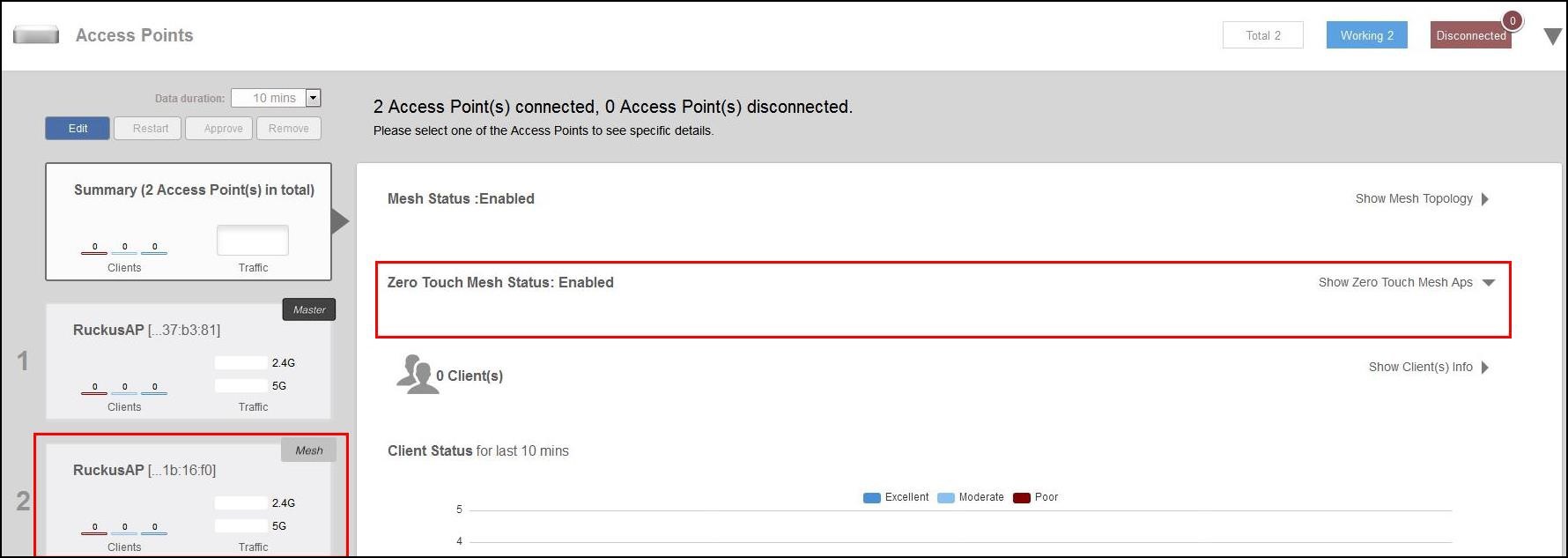
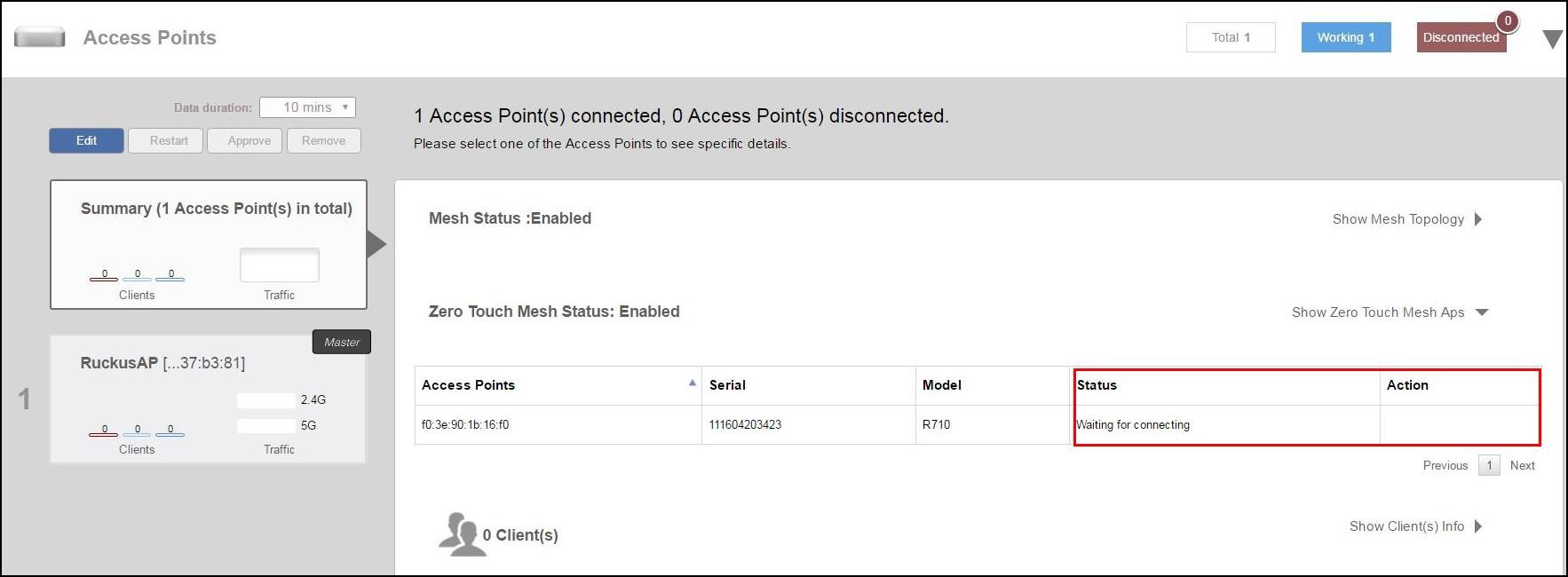
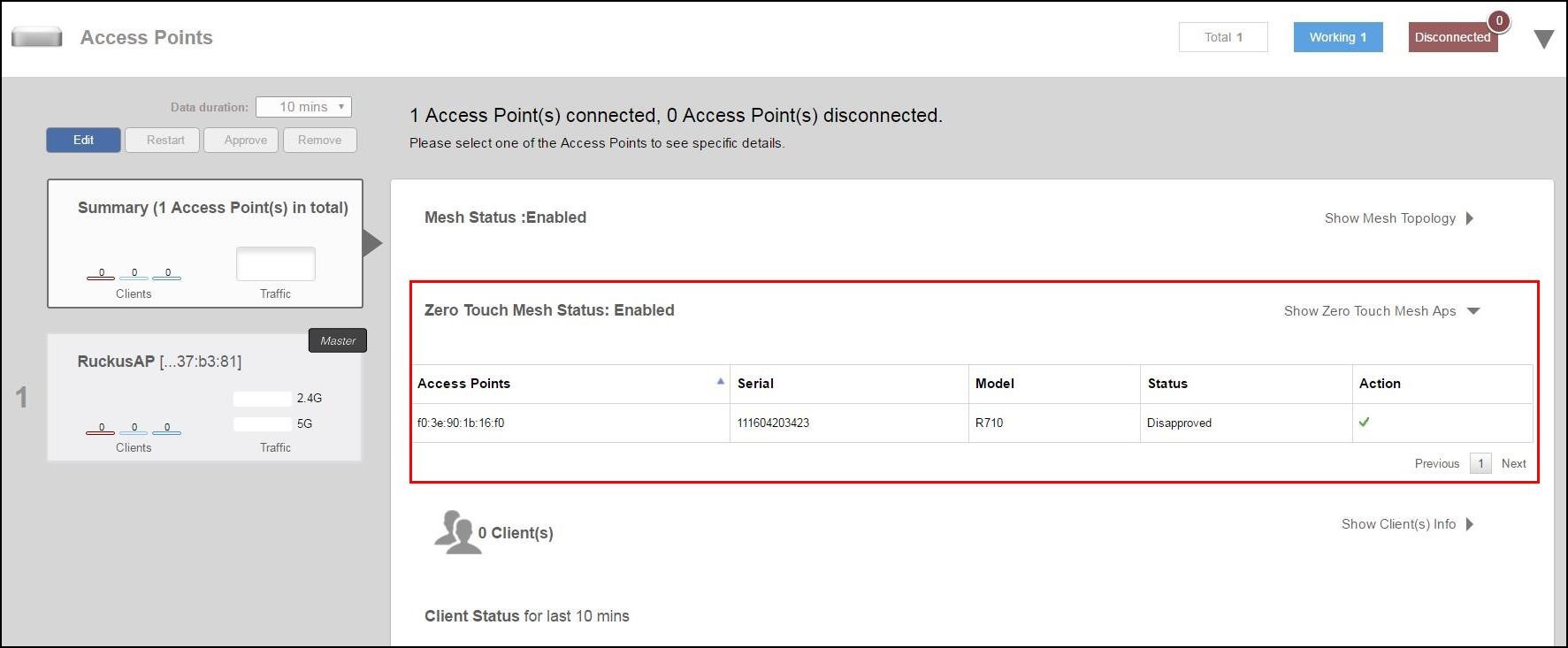
- Go to Access Points > Summary > Show Zero Touch Mesh APs.
- When a supported AP attempts to join, it will appear in the Zero Touch Mesh AP table. Click the Approve button to approve the AP.
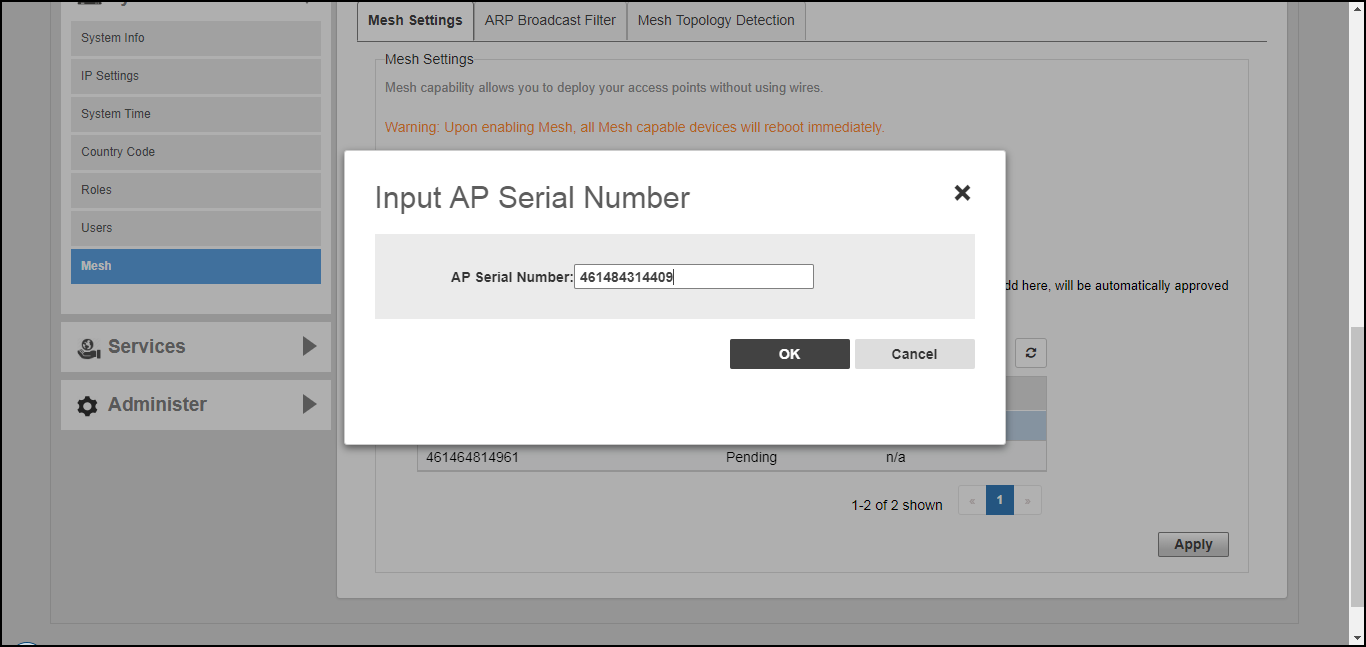
- To pre-approve APs by serial number, go to Admin & Services > System > Mesh > Zero Touch Mesh, and locate the Pre-Approved Zero Touch Mesh section.
- In the same section, click the Add button to add a new AP to the list of pre-approved Zero Touch Mesh APs.
- Enter the
AP Serial Number of the AP to autoprovision, and click
OK.
The AP's serial number is added to the list.
- Repeat for additional mesh APs.
- Click
Apply.
A message box appears notifying you that the process may take several minutes for the changes to propagate through the mesh network.
- When the listed APs in factory default state come online, they will begin performing network discovery, auto-provisioning and finally association to another upstream AP the Unleashed network.