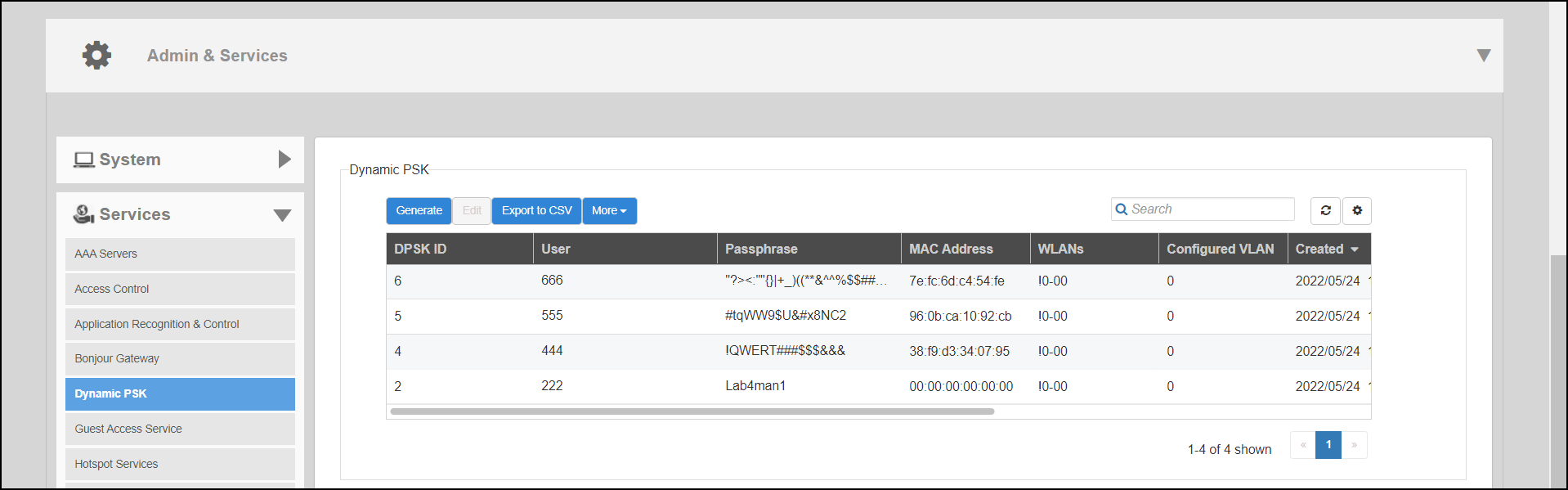
Generating DPSKs in Batch
You can create DPSKs at once (from 1
through 50) or upload a CSV file with the custom DPSKs.
- Go to .
- Click Generate.
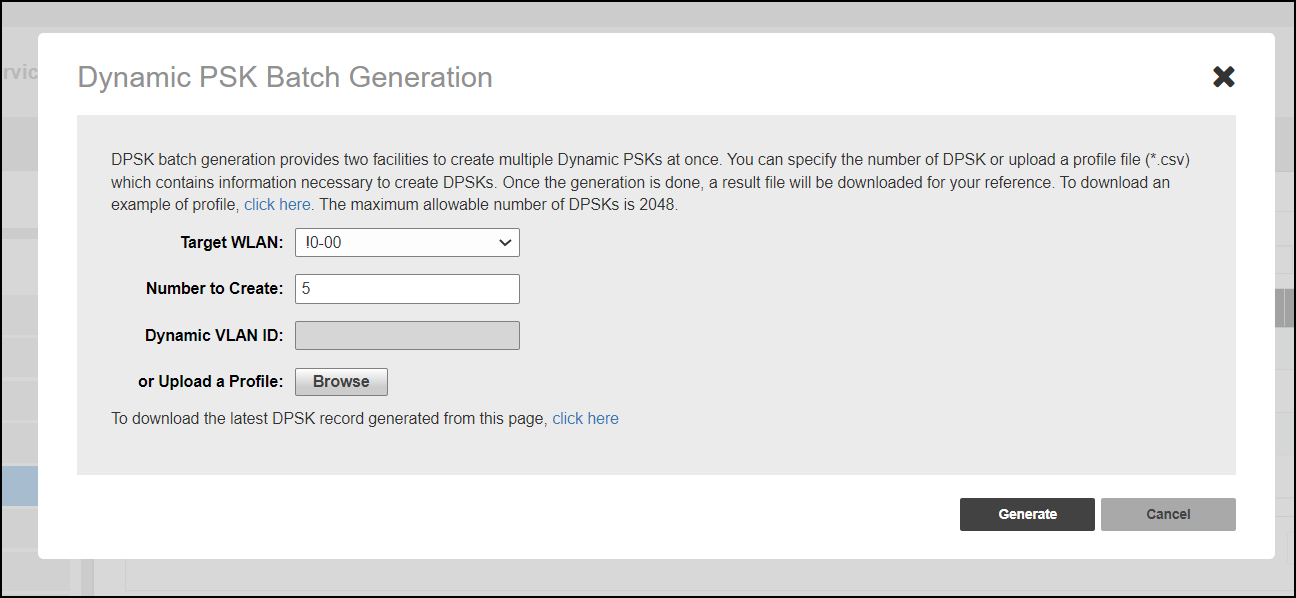
- In the Dynamic PSK Batch Generation dialog box, enter the
following fields:
- Target WLAN: Select the WLAN to which the DPSKs will be applied. (Only WLANs with the DPSK enabled are listed.)
- Number to Create: Enter the number of DPSKs you want to generate (ranging from 1 through 50; the default value is 5).
- Dynamic VLAN ID: Enter a valid VLAN ID, ranging from 1 through 4094 (if Dynamic VLAN ID is enabled for this WLAN).
- Upload a Profile: Refer to Uploading a Dynamic PSK Profile.
- Click Generate to generate the requested number of DPSKs.