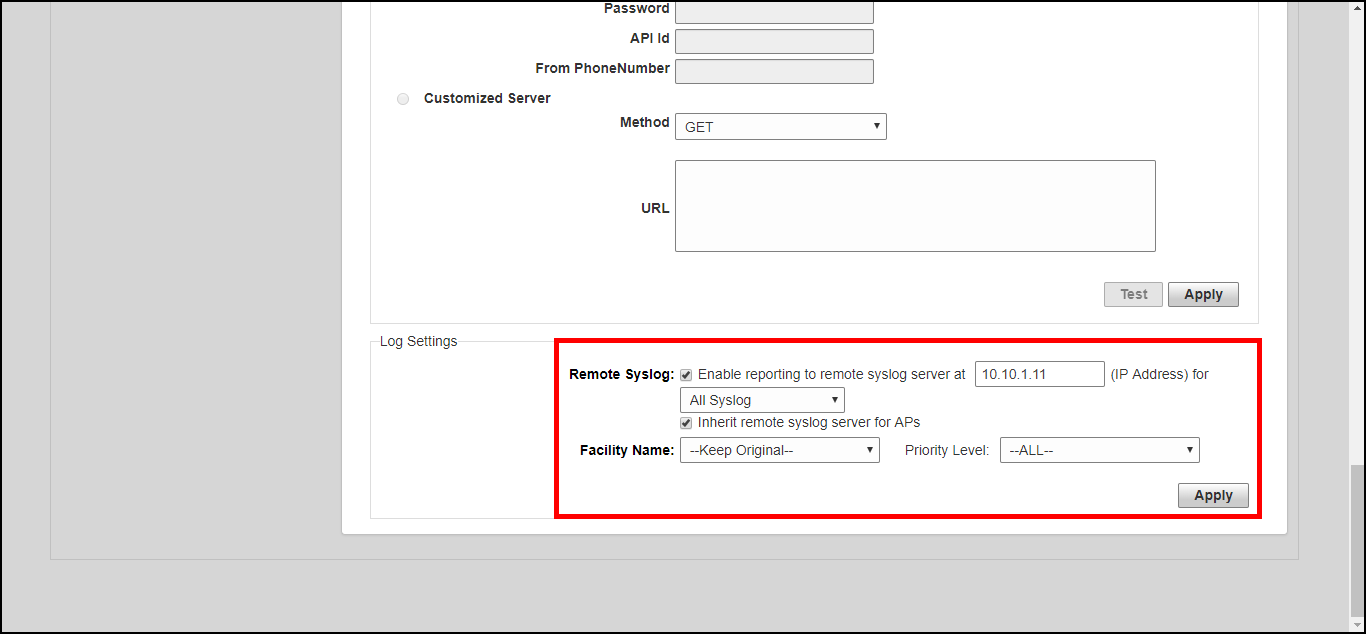
Enabling Log Delivery to Remote Syslog Server
Unleashed's internal log files can be configured for automatic delivery to a remote
syslog server.
- Go to Admin & Services > System > System Info, and scroll down to the Log Settings section at the bottom of the page.
- Enable the Remote Syslog option and enter the IP address of the syslog server in the field provided.
- Select one of the following options to control the content of the logs:
- All Syslog: The controller sends all syslog messages configured in the Debug Logs section of the Admin & Services > Administration > Diagnostics > Debug Info page.
- Client Connection Logs Only: The controller sends client connection logs only to the syslog server.
- Client Flow Data Only: The controller sends client flow data only to the syslog server.
- Optionally, enable the
Inherit remote syslog server for APs option.
Enabling this feature allows the controller to supply client association information to a third party application that can then deploy ACL policies to a firewall based on client association information such as user name, IP, MAC address, etc. First, Unleashed retrieves client association information, then reorganizes the information and sends it to the syslog server, from which it can be collected by the third party software and sent to the firewall for access restrictions based on client association information.
- Configure the Facility Name as follows:
- Set the
Priority Level as follows:
- All: Include all syslog messages.
- 0(emerg), 1(alert), 2(crit), 3(err), 4(warning), 5(notice), 6(info), 7(debug): Lower numbers indicate higher priority. The syslog server will only receive logs whose priority levels are the same as or higher than the configured level.