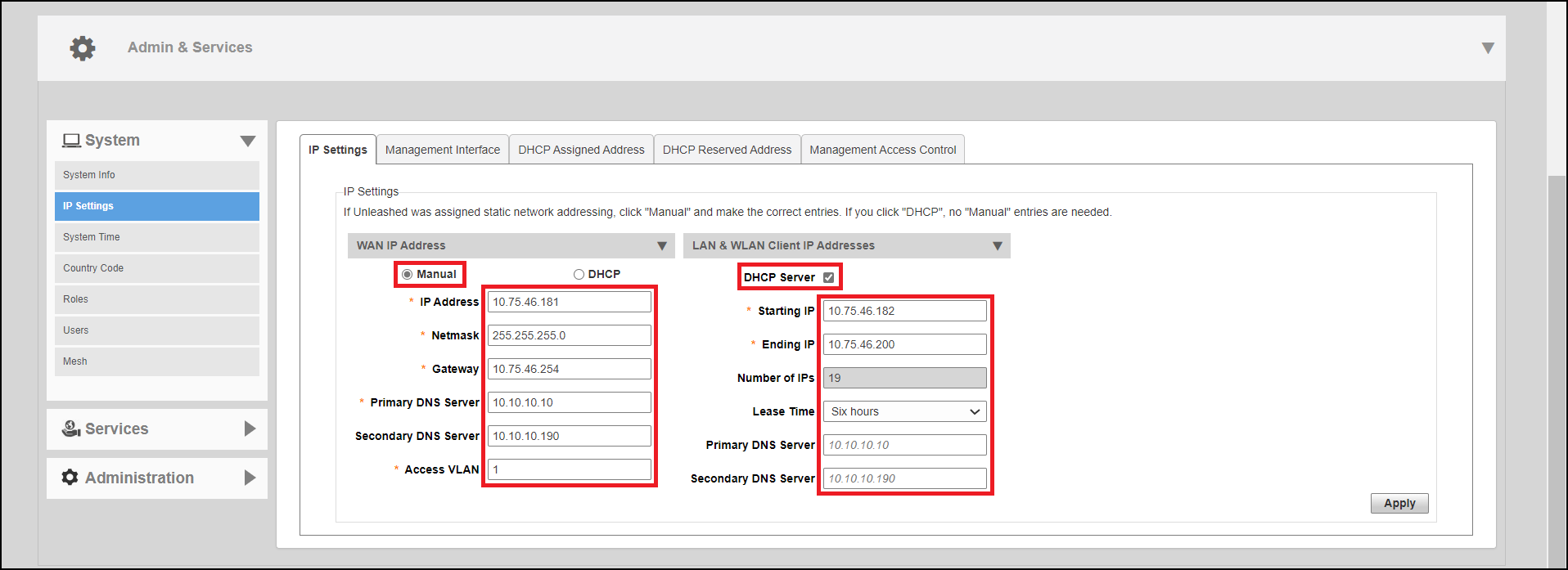
DHCP Server
RUCKUS Unleashed provides a built-in DHCP server that you can enable to assign IP addresses to devices that are connected to the RUCKUS Unleashed network. The internal DHCP server will only assign addresses to devices that are on its own subnet and part of the same VLAN.
Note: Before you
can enable the built-in DHCP server, the Master AP must be assigned a manual
(static) IP address. If you configured RUCKUS
Unleashed to obtain its IP address from another DHCP server on the network,
the options for the built-in DHCP server will not be visible on the IP Settings page.
Complete the following steps to configure the built-in DHCP server:
- Go to Admin & Services > System > IP Settings.
- Under WAN IP Address, select Manual and enter the static IP settings (IP address, netmask, gateway and DNS settings).
- In LAN and WLAN Client IP Addresses, enable the DHCP Server check box.
- Starting IP: Enter the first IP address that the built-in DHCP server will allocate to DHCP clients. The starting IP address must be on the same subnet as the IP address assigned to the Master AP. If the value that you entered is invalid, an error message appears and prompts you to let RUCKUS Unleashed automatically correct the value. Click OK to automatically correct the entry.
- Ending IP: Enter the last IP address in the range that you want to allocate to requesting clients. The built-in DHCP server can allocate up to 512 IP addresses including the one assigned to the Master AP. The default value is 200.
- Lease Time: Select a time period for which IP addresses will be allocated to DHCP clients. Options range from six hours to two weeks (the default is one week).
- Enter the primary and secondary DNS server addresses.Note: In the gateway mode, the user can customize the DNS server setting for wireless clients. If the DNS server setting is ignored, the WAN interface DNS server setting is used.
- Click
Apply.
Note: If you entered an invalid value in any of the text boxes, an error message appears and prompts you to let RUCKUS Unleashed automatically correct the value. Click OK to automatically correct the value.Note: RUCKUS recommends that you only enable the built-in DHCP server if there are no other DHCP servers on the network. If you enable the built-in DCHP server, RUCKUS also recommends enabling rogue DHCP server detection. For more information, refer to Rogue DHCP Server Detection.Note: Make sure the DHCP address pool is routable to the internet and non-overlapping with other devices. Because RUCKUS Unleashed in non-gateway mode does not support Network Address Translation (NAT), this is important to avoid IP address conflicts. For example, if your router uses the 192.168.0.x subnet, you must use any subnet other than 192.168.0.x for your RUCKUS Unleashed DHCP subnet.